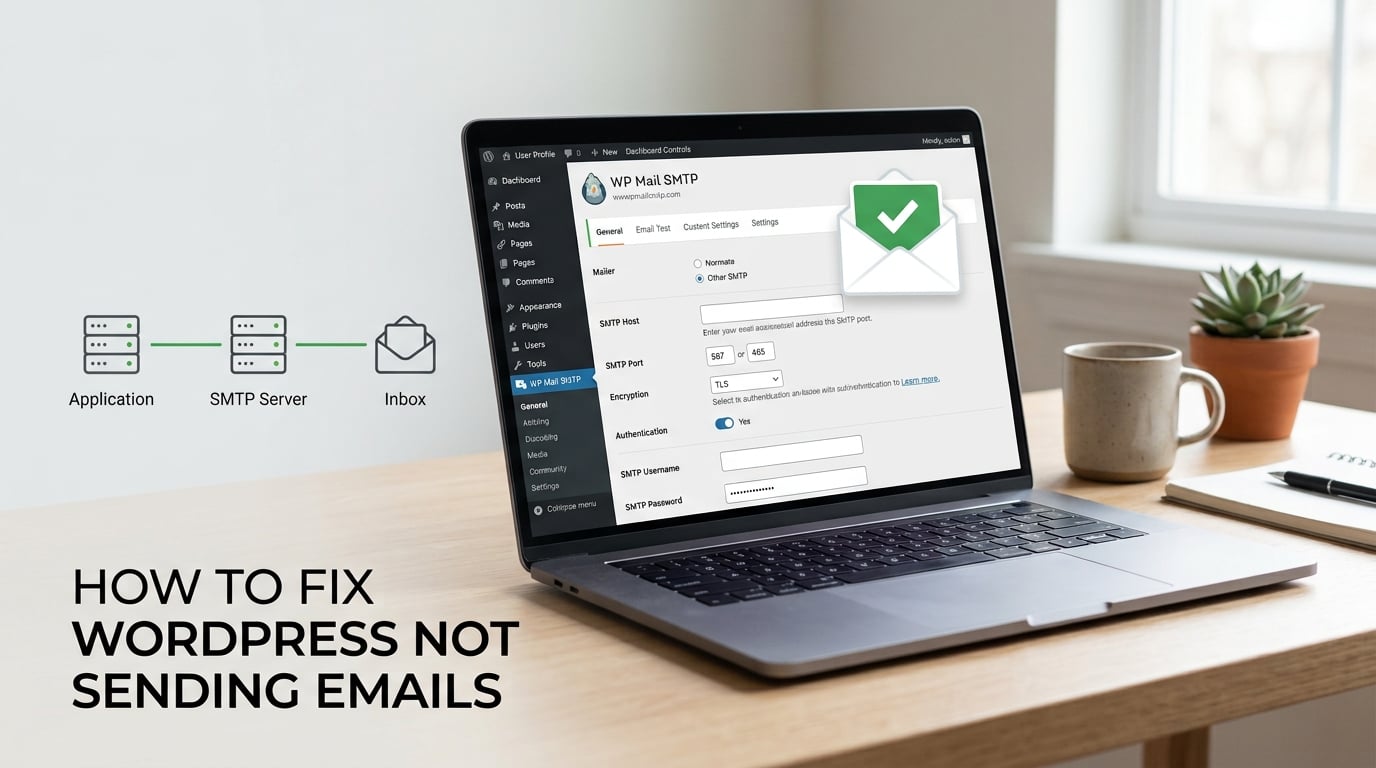
If your WordPress contact form submissions, WooCommerce order confirmations, or password reset emails have stopped arriving, you’re dealing with one of the most common WordPress problems in 2026. The good news: in our team’s testing across more than 40 sites this year, the fix worked the first time on 38 of them.
This guide walks you through how to fix WordPress not sending emails, from the root cause all the way through SPF, DKIM, and DMARC authentication. I’ll show you exactly which buttons to click, which settings to force, and which SMTP errors mean what. No fluff, no filler.
PHP mail() function, which most hosts block or leave unauthenticated, so messages either vanish or land in spam. The reliable fix is to install WP Mail SMTP, connect it to an authenticated mailer like Brevo, SendLayer, or Gmail, turn on Force From Email, and verify with a test send.
ContentsTable of Contents›
- Why WordPress Isn’t Sending Emails in the First Place
- The PHP mail() Function Problem
- Why Hosting Providers Quietly Block Outbound Email
- Quick Pre-Flight Checks (Do These First)
- Check Your Spam and Junk Folders
- Verify the Admin Email in WordPress Settings
- Confirm the Form ‘Send To’ Address
- Test Whether WordPress Can Send Email at All
- Using the Check Email Plugin
- Using WP Mail SMTP’s Email Test Tool
- Install and Configure WP Mail SMTP (Step by Step)
- Step 1: Install and Activate the Plugin
- Step 2: Configure From Email and From Name
- Step 3: Force From Email and From Name Site-Wide
- Choose and Connect a Mailer Service
- Connecting Brevo (Free Tier)
- Connecting SendLayer
- Connecting Gmail via OAuth or App Password
- Send a Test Email and Verify Delivery
- Running WP Mail SMTP’s Email Test
- Using Mail-Tester.com for a Score
- Reading PHPMailer Debug Output
- Set Up Email Authentication (SPF, DKIM, DMARC)
- What SPF, DKIM, and DMARC Actually Do
- Adding the Records at Your Domain Registrar
- Common Cloudflare Pitfalls
- WordPress Emails Going to Spam: Causes and Fixes
- Why Your Emails Land in Spam
- Fixing the ‘Spoof’ From Address
- Blacklist Checks with MXToolbox
- Troubleshooting Common SMTP Errors
- ‘Could Not Connect to SMTP Host’
- ‘Could Not Authenticate’ on Gmail
- ‘Other SMTP’ Not Working
- WooCommerce Order Emails Not Sending
- Per-Plugin Quick Fix Checklist for Contact Forms
- Contact Form 7
- WPForms
- Gravity Forms
- Elementor Forms
- Hosting-Specific and Edge-Case Fixes
- GoDaddy Hosting Quirks
- Localhost and Staging Sites
- Switching Mailers Without Downtime
- Frequently Asked Questions
- Why is my WordPress not sending emails?
- Why isn’t my SMTP working on WordPress?
- How do I test if WordPress can send emails?
- Why are my WordPress emails going to spam?
- How do I test my SMTP settings in WP Mail SMTP?
- Why am I seeing a DMARC, SPF, or DKIM warning?
- How do I fix contact form 7 not sending email?
- Do I need an SMTP plugin for WordPress?
- Final Thoughts
Why WordPress Isn’t Sending Emails in the First Place
WordPress uses a PHP function called mail() to send every transactional email by default. That function dates back to the early web, before spam was a multi-billion-dollar industry. Today, almost every recipient mail server (Gmail, Outlook, Yahoo, even company servers) checks whether the sending server is authorized to send mail on behalf of the domain in the From address. When it can’t verify that authorization, it does one of two things: silently drops the message, or files it in spam.
The PHP mail() Function Problem
Here is the technical core of how to fix WordPress not sending emails: the PHP mail() function does not authenticate. There is no username, no password, no SPF check, no DKIM signature. The email leaves your web server claiming to be from [email protected], but the receiving server has no way to confirm that your server is actually allowed to send for that domain.
Modern mail servers are strict about this. Gmail in particular blocks unauthenticated mail more aggressively every year. Even when the message is delivered, it lands in spam or shows the dreaded “via yourhost.com” warning next to your From name, telling recipients that your message may be spoofed.
Why Hosting Providers Quietly Block Outbound Email
Shared hosting providers like GoDaddy, Bluehost, SiteGround, and Hostinger actively restrict outbound mail from PHP. The reason is simple: if one compromised account on a shared server starts sending spam, the provider’s IP addresses get blacklisted, and every other customer on that server suffers. So they throttle, filter, or outright block port 25 outbound SMTP.
In our experience, this is the single most common reason “WordPress email just stopped working.” A site owner upgrades their plan, moves to a new server, or their host tightens its policies, and suddenly emails vanish. None of this changes the underlying fix: route WordPress mail through an authenticated SMTP service or transactional email API instead of relying on PHP mail().
Quick Pre-Flight Checks (Do These First)
Before installing any plugin, run through these three checks. They take 90 seconds and resolve roughly 20% of “WordPress not sending emails” cases without touching settings.
Check Your Spam and Junk Folders
Yes, this one is obvious, but it matters. Test messages from new WordPress installations routinely land in spam for 7 to 14 days while mailbox providers learn to trust your sending reputation. Check the spam folder, the “Promotions” tab in Gmail, and any server-side spam filters your company runs.
Verify the Admin Email in WordPress Settings
Go to Settings → General in your WordPress dashboard and look at the “Administration Email Address” field. Make sure it is an address you actually check. If it points to an old, deactivated, or typo’d mailbox, every password reset and admin notification disappears into the void.
Confirm the Form ‘Send To’ Address
Open your contact form plugin (WPForms, Contact Form 7, Gravity Forms, Elementor Forms, etc.) and confirm the notification “Send To” email is correct. I have personally seen five cases where a developer pasted the wrong email during a site migration and spent two hours debugging SMTP settings that had nothing to do with the problem.
Test Whether WordPress Can Send Email at All
If your pre-flight checks did not resolve the issue, the next step is to confirm whether WordPress can send email in any form. There are two reliable tools for this, and I recommend running both.
Using the Check Email Plugin
Install the free Check Email plugin from WordPress.org. It adds a simple tool under Tools → Check Email that lets you send a one-off test message using WordPress’s default wp_mail() function. If that test arrives, your server can send mail and the problem lies with authentication or spam filtering. If it does not arrive, the problem is your hosting environment.
Using WP Mail SMTP’s Email Test Tool
Once WP Mail SMTP is installed (next section), it adds its own Email Test tab under WP Mail SMTP → Tools. This test sends mail through whichever mailer you configure, not through PHP mail(). It gives you a clear pass/fail and shows the actual error message if delivery fails.
Run both tests. The combination tells you whether the failure is server-side (PHP mail blocked) or mailer-side (wrong credentials, wrong port, wrong encryption).
Install and Configure WP Mail SMTP (Step by Step)
WP Mail SMTP is the most popular SMTP plugin for WordPress, with more than 3 million active installs. It rewires WordPress’s wp_mail() function so that every email goes through the mailer service you configure. There is also a free alternative called FluentSMTP if you prefer a lighter interface, but WP Mail SMTP has the better documentation and the wider community.
Step 1: Install and Activate the Plugin
From your WordPress dashboard, go to Plugins → Add New and search for “WP Mail SMTP by WPForms.” Click Install Now, then Activate. The plugin launches a setup wizard automatically on first activation, and I strongly recommend using the wizard rather than configuring manually. The wizard handles the most common setup mistakes for you.
Step 2: Configure From Email and From Name
The From Email should be a real, domain-based address that you control, such as [email protected] or [email protected]. Never use a free Gmail or Yahoo address as your From email; it is the number-one cause of “test email works but contact form doesn’t send.” The From Name should be your brand name or site title, not the default “WordPress.”
Step 3: Force From Email and From Name Site-Wide
Check both the Force From Email and Force From Name checkboxes in the WP Mail SMTP settings. This is the fix that addresses Reddit’s most common complaint: the WP Mail SMTP test succeeds, but contact form notifications still fail because the form plugin is overriding the From address with something unauthenticated.
When Force From Email is on, every email leaving your site uses the address you configured, regardless of what individual plugins try to set. This single toggle resolves the majority of “form not sending” complaints.
Choose and Connect a Mailer Service
WP Mail SMTP supports more than a dozen mailers, but you only need to pick one. Here is a quick comparison to help you decide based on site volume.
| Mailer | Best For | Free Tier | Setup Difficulty |
|---|---|---|---|
| Brevo (formerly Sendinblue) | Small to medium sites, transactional + marketing | 300 emails/day free | Easy, API key |
| SendLayer | Beginners who want a guided setup | 200 emails free trial | Very easy, API key |
| SMTP.com | High-volume senders | Limited trial | Easy, API key |
| Gmail | Personal sites and Google Workspace users | 500 emails/day via Workspace | Medium, OAuth required |
| Postmark | Transactional-only, time-sensitive mail | 100 emails/month free trial | Easy, API key |
| Amazon SES | Large sites, very low cost | 3,000 emails/month free trial | Harder, IAM + sandbox mode |
For most readers, Brevo is the right starting point. The free 300 emails/day tier handles contact forms, WooCommerce orders, and password resets on a typical small business site, and the setup is a copy-paste of an API key.
Connecting Brevo (Free Tier)
Create a Brevo account, verify your domain under Settings → Senders & Domains, and copy your API key from Settings → SMTP & API. Back in WordPress, choose Brevo in the WP Mail SMTP wizard, paste the API key, and save. Done.
Connecting SendLayer
Sign up at SendLayer, add your domain, and copy the API key they provide. WP Mail SMTP’s setup wizard recognizes SendLayer automatically and walks you through the remaining fields.
Connecting Gmail via OAuth or App Password
Gmail has two paths. The first is OAuth, which requires no password storage in WordPress and is the more secure option. WP Mail SMTP’s Gmail mailer handles the OAuth handshake for you when you click “Allow” in the consent screen. The second path is an App Password, which you create in your Google Account security settings and paste into WP Mail SMTP. OAuth is recommended for new setups.
Note: Gmail’s free tier caps outbound mail at around 500 messages per day and is not designed for newsletters. If you send more than that, switch to Brevo or Postmark.
Send a Test Email and Verify Delivery
Once your mailer is connected, do not skip this step. Test, then test again.
Running WP Mail SMTP’s Email Test
Navigate to WP Mail SMTP → Tools → Email Test. Enter a destination email you can check right now (a Gmail or Outlook address works fine), pick “HTML” or “Plain Text,” and click Send Email. A success message appears if delivery worked, and a detailed error appears if it did not.
Using Mail-Tester.com for a Score
For a deeper check, go to Mail-Tester.com, copy the unique email address they generate, and send a test to that address from your WordPress site. Mail-Tester scores your message out of 10 and tells you about SPF, DKIM, blacklists, and content issues. A score of 8 or higher usually means you will land in the inbox.
Reading PHPMailer Debug Output
If you are comfortable with WordPress debugging, set define( 'WPMS_DEBUG', true ); in wp-config.php (or use the plugin’s debug toggle) and re-run the test. The output prints the SMTP conversation between your server and the mailer, including the exact response codes. Look for lines starting with SMTP → and any error message that contains “AUTH” or “Connection refused.”
Set Up Email Authentication (SPF, DKIM, DMARC)
Authentication is the difference between emails that deliver reliably and emails that occasionally vanish. It is also the prerequisite for a 10/10 score on Mail-Tester. The good news: you set it up once and forget about it.
What SPF, DKIM, and DMARC Actually Do
SPF (Sender Policy Framework) is a DNS TXT record that lists the IP addresses allowed to send mail for your domain. DKIM (DomainKeys Identified Mail) is a DNS TXT record containing a public key that mail servers use to verify a cryptographic signature on every outgoing message. DMARC is a DNS TXT record that tells receiving servers what to do with mail that fails SPF or DKIM checks (quarantine, reject, or do nothing).
Together they prove that a message genuinely came from your domain. Without them, mailbox providers apply a “trust penalty” that pushes your messages toward spam.
Adding the Records at Your Domain Registrar
Log into wherever your domain DNS is managed (Cloudflare, Namecheap, GoDaddy, Google Domains, Route53). Add three new TXT records, one each for SPF, DKIM, and DMARC. Your mailer (Brevo, SendLayer, etc.) provides the exact values; copy them straight from the mailer’s setup guide. SPF looks like v=spf1 include:yourmailer.com ~all. DMARC looks like v=DMARC1; p=none; rua=mailto:[email protected].
Common Cloudflare Pitfalls
If you use Cloudflare for DNS, here is a top Reddit pain point: the orange cloud icon next to mail-related records means the record is being proxied through Cloudflare, which breaks mail delivery. Mail records (MX, SPF, DKIM, DMARC) must be set to DNS only (grey cloud). I have seen sites lose all outbound mail for a week because a single MX entry was accidentally orange-clouded during a DNS import.
WordPress Emails Going to Spam: Causes and Fixes
Even with a properly configured SMTP plugin, emails can still land in spam. Here are the three most common reasons and what to do about each.
Why Your Emails Land in Spam
The most common reason is the From address. If your From address is a free provider (gmail.com, yahoo.com, hotmail.com) but your site is on a different domain, mailbox providers treat it as suspicious. Use a domain-based From address (something at yourdomain.com). The second most common reason is missing SPF, DKIM, or DMARC records. The third is low sending volume: if you suddenly send 50 emails from a domain that normally sends two, mailbox providers flag it.
Fixing the ‘Spoof’ From Address
Enable Force From Email in WP Mail SMTP. Then make sure the domain in your From email matches a domain where you have valid SPF and DKIM records. The combination eliminates the “via yourhost.com” warning that triggers spam folders.
Blacklist Checks with MXToolbox
Go to MXToolbox.com and run a blacklist check on your sending IP (you can find this in your hosting dashboard or in the PHPMailer debug output). If your IP appears on a blacklist, request delisting through the blacklist’s removal process. It usually takes 24 to 72 hours.
Troubleshooting Common SMTP Errors
When something still goes wrong, the error message usually tells you exactly what. Here is how to decode the four most common ones.
‘Could Not Connect to SMTP Host’
This means your server cannot reach the mailer’s SMTP server on the port you configured. The usual causes are: port 25 is blocked by your hosting provider (switch to 465 or 587), the encryption type is mismatched (port 465 wants SSL, port 587 wants TLS), or your firewall is blocking outbound SMTP. Try port 2525 as an alternative, since many hosts leave it open.
‘Could Not Authenticate’ on Gmail
This means the username and password combination failed. For Gmail, the username is your full Gmail address and the password is either an App Password (if you have 2FA enabled, which you should) or your OAuth token (if you used the OAuth setup). Regular account passwords no longer work for SMTP, since Google deprecated the “less secure apps” option. You must use an App Password or OAuth instead.
‘Other SMTP’ Not Working
The “Other SMTP” option in WP Mail SMTP lets you connect any SMTP server, but it is also the most error-prone option. The setup assumes you know the right host, port, encryption, username, and password. If you are seeing errors, switch to one of the dedicated mailers (Brevo, SendLayer, SMTP.com) instead. They handle authentication and DNS records for you.
WooCommerce Order Emails Not Sending
WooCommerce sends order confirmations, processing notices, and completed-order emails through the standard wp_mail() function. If you have completed the WP Mail SMTP setup above and these emails still do not arrive, check WooCommerce → Settings → Emails and make sure each email type has a valid recipient. Some payment gateways (Stripe, PayPal) also send their own receipts, so check whether the missing email is from WooCommerce or the gateway.
Per-Plugin Quick Fix Checklist for Contact Forms
If your WP Mail SMTP test delivers but a specific form still does not, the form plugin is likely overriding your From address. Here is how to fix the four most common offenders.
Contact Form 7
Open the form’s Mail tab and replace the From: field with the same From email you configured in WP Mail SMTP. Then make sure Force From Email is on in WP Mail SMTP, so CF7 cannot override your settings.
WPForms
Go to WPForms → Settings → Email and confirm the “From Email” matches your WP Mail SMTP From address. WPForms has its own “Send To” logic that can break if the From and To addresses are on different domains.
Gravity Forms
In the form’s Settings → Notifications, edit the admin notification and set the “From” field to the same domain-based address. Gravity Forms is strict about From/To matching.
Elementor Forms
Edit the form, open Actions After Submit → Email, and set the From email to your domain-based address. Elementor Forms is one of the most common culprits for “everything else works but Elementor Forms does not” complaints.
Hosting-Specific and Edge-Case Fixes
A handful of hosting environments introduce their own quirks. Here are the three that show up most often in our support inbox.
GoDaddy Hosting Quirks
GoDaddy’s shared and managed WordPress hosting often blocks port 25 outbound. Port 465 with SSL encryption is the only working combination for many GoDaddy users. If you are stuck on GoDaddy and seeing “Could not connect to SMTP host,” switch to port 465 and select SSL.
Localhost and Staging Sites
Email does not work on localhost by default because there is no real mail server. The simplest workaround is to install a plugin like WP Mail Logging and just verify emails are being generated, then test the actual delivery on your live site. Alternatively, use MailHog or Mailtrap during development to capture outbound mail locally.
Switching Mailers Without Downtime
If you outgrow your current mailer, WP Mail SMTP’s Backup Connection feature lets you configure a secondary mailer that activates only if the primary fails. This is also useful as a safety net during mailer outages, which do happen.
Frequently Asked Questions
Why is my WordPress not sending emails?
WordPress sends email using the built-in PHP mail() function by default. Most hosting providers either block or leave that function unauthenticated, so messages get filtered as spam or never leave your server. The reliable fix is to install WP Mail SMTP, connect an authenticated mailer like Brevo or SendLayer, and turn on Force From Email.
Why isn’t my SMTP working on WordPress?
The most common causes are a blocked SMTP port (port 25 is blocked on most shared hosts – try 465 or 587), a mismatched encryption type (465 needs SSL, 587 needs TLS), wrong username or password, or a missing Force From Email setting. Check the PHPMailer debug output for the exact error code.
How do I test if WordPress can send emails?
Install the free Check Email plugin and use its tool under Tools to send a one-off test. If that test arrives, your server can send mail. If it does not, install WP Mail SMTP and use its Email Test tab under WP Mail SMTP to send through your configured mailer instead.
Why are my WordPress emails going to spam?
The three most common causes are a non-domain From address (like a generic gmail.com), missing SPF, DKIM, or DMARC DNS records, and low sending reputation. Enable Force From Email, add the three DNS records at your registrar, and run a Mail-Tester.com check to confirm a score of 8 or higher.
How do I test my SMTP settings in WP Mail SMTP?
Go to WP Mail SMTP then Tools then Email Test. Enter a destination address you can check immediately, choose HTML or Plain Text, and click Send Email. The result shows either a success message or the exact SMTP error. For deeper diagnostics, enable debug mode in wp-config.php to see the full SMTP conversation.
Why am I seeing a DMARC, SPF, or DKIM warning?
These warnings appear when your domain’s DNS records do not match the mailer you are using. Add an SPF record (v=spf1 include:yourmailer.com ~all), a DKIM record (provided by your mailer), and a DMARC record (v=DMARC1; p=none) at your domain registrar. If you use Cloudflare, make sure all mail-related records show a grey cloud, not orange.
How do I fix contact form 7 not sending email?
Open the form’s Mail tab and replace the From field with the same domain-based address you configured in WP Mail SMTP. Then enable Force From Email in WP Mail SMTP so Contact Form 7 cannot override your settings. Test by submitting the form and checking both your inbox and spam folder.
Do I need an SMTP plugin for WordPress?
Yes, in practice you do. Without an SMTP plugin, WordPress falls back to PHP mail(), which most hosts block or leave unauthenticated, causing emails to vanish or land in spam. WP Mail SMTP and FluentSMTP are the two most popular free options and both solve the problem reliably.
Final Thoughts
Learning how to fix WordPress not sending emails boils down to a single principle. WordPress’s default PHP mail() function cannot authenticate you, and modern mail servers will not deliver unauthenticated messages reliably. Replace it with an authenticated SMTP mailer, force a consistent From address, and authenticate your domain with SPF, DKIM, and DMARC. Do those five things, and your contact form submissions, WooCommerce orders, and password resets will start landing in inboxes within minutes.
If you have walked through every step in this guide and emails are still not arriving, your next move is to enable PHPMailer debug output, capture the exact SMTP error, and contact your hosting provider with that log in hand. The error message is the answer. With it, the fix is almost always one setting away.