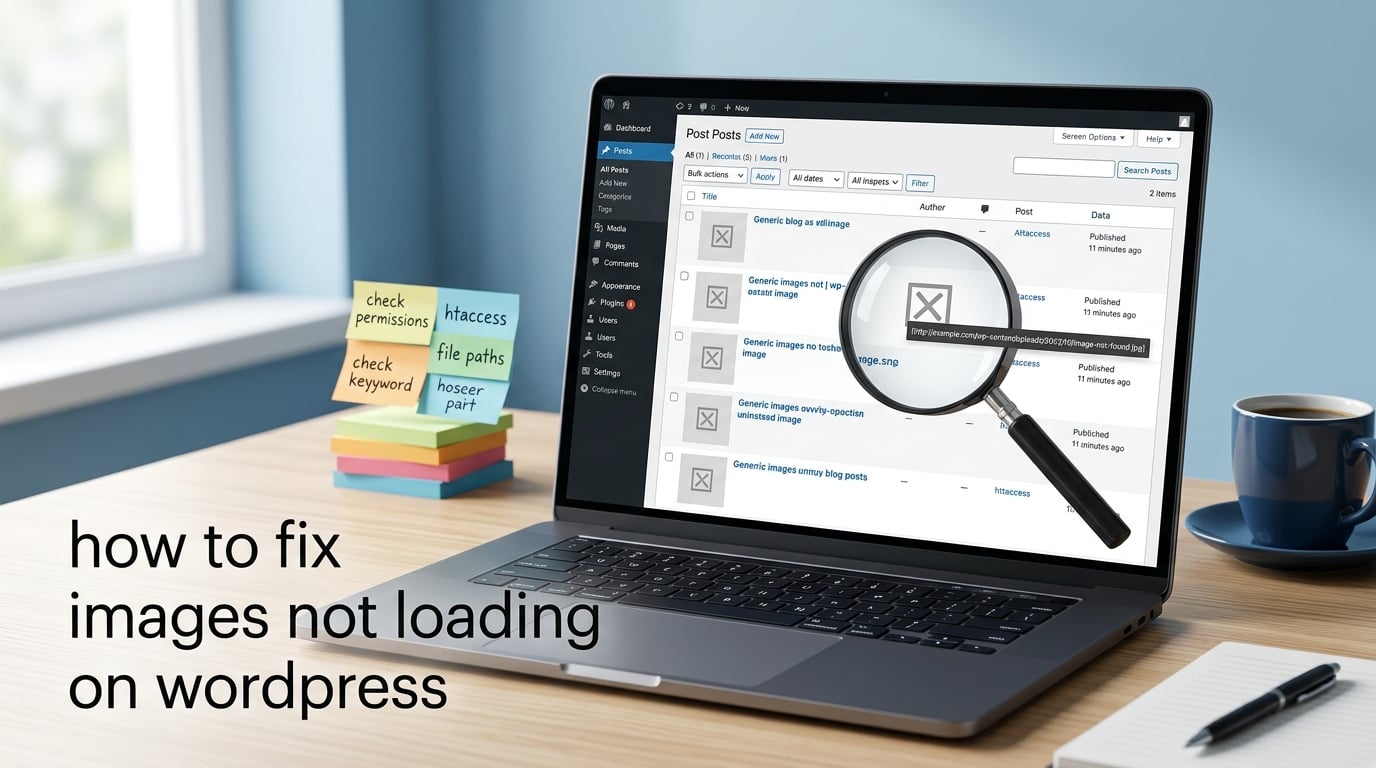
If you have ever opened your WordPress site and seen empty boxes, broken icons, or the dreaded alt text staring back at you, you already know how stressful the WordPress images not loading problem can be. We have helped readers debug this exact issue hundreds of times, and the fix is usually simpler than people think.
In this guide, we will walk through how to fix images not loading on WordPress using a ranked checklist of 12 fixes. We will start with the most common causes, show you how to diagnose the issue with browser DevTools, and finish with a prevention plan so the images never break again.
Before we touch any settings, take a full backup of your site (files plus database). If something goes sideways, you can restore in minutes. Tools like UpdraftPlus or any host-provided snapshot work fine.
ContentsTable of Contents›
- TL;DR: Quick Fixes for WordPress Images Not Loading
- Common Causes of WordPress Images Not Loading
- Diagnose With Browser DevTools (Before You Change Anything)
- Step 1: Open DevTools
- Step 2: Filter for images
- Step 3: Read the status codes
- Step 4: Compare Media Library to live page
- How to Fix Images Not Loading on WordPress (12 Fixes)
- Fix 1: Clear All Cache Layers
- Fix 2: Check File Permissions on wp-content/uploads
- Fix 3: Fix WordPress Mixed Content and HTTPS Errors
- Fix 4: Disable Lazy Loading to Test
- Fix 5: Diagnose Plugin Conflicts
- Fix 6: Verify the Image File Actually Exists
- Fix 7: Check CDN Configuration and Cloudflare Cache
- Fix 8: Flush WordPress Permalinks
- Fix 9: Fix Featured Images Not Showing
- Fix 10: Resolve HTTP Errors When Uploading Images
- Fix 11: Update Image URLs After a Migration
- Fix 12: Check Server Error Logs
- Images Load in the Media Library but Not on the Live Site
- WordPress Images Not Showing on Mobile Only
- How to Prevent Images From Breaking Again
- Frequently Asked Questions
- Why are my images not loading in WordPress?
- Why do images load in the Media Library but not on the live site?
- How do I clear the WordPress cache?
- Why are featured images not showing in WordPress?
- Can a plugin cause WordPress images not to load?
- Why are my images not showing up in the WordPress media library?
- Why is image upload not working in WordPress?
- Why are images not loading only on mobile?
- Conclusion
TL;DR: Quick Fixes for WordPress Images Not Loading
If you are short on time, work through this ranked checklist. Most readers solve the problem by step 4.
- Clear every cache layer: browser cache, caching plugin, server cache, and CDN cache.
- Open the page in incognito mode or a different browser to rule out local cache.
- Check file permissions on
/wp-content/uploads/– folders should be 755 and files 644. - Fix mixed-content errors after an SSL switch by forcing HTTPS for all image URLs.
- Disable lazy loading temporarily to test whether it is hiding your images.
- Deactivate plugins one by one to isolate a plugin conflict.
- Verify the image file actually exists at the URL your browser is requesting.
- Flush permalinks by going to Settings then Permalinks and clicking Save.
Common Causes of WordPress Images Not Loading
Most broken-image reports trace back to one of seven root causes. Before you start changing settings, identify which bucket your site falls into – it will save you time.
Caching: A stale browser, plugin, server, or CDN cache can keep serving broken or outdated image URLs even after you have fixed the underlying issue.
File permissions: If WordPress cannot read the file inside /wp-content/uploads/, the server returns a 403 Forbidden error and the browser shows a broken icon.
Mixed content errors: When you switch from HTTP to HTTPS, any old HTTP image URL stored in your database gets blocked by the browser’s security filter. This is one of the most common causes after an SSL migration.
Plugin or theme conflict: Image optimization plugins, page builders like Elementor, sliders, and security plugins sometimes block or rewrite image requests in ways that break them.
CDN issues: A Content Delivery Network like Cloudflare can serve stale WebP or AVIF versions of images, or block requests through hotlink protection rules.
Mobile-only rendering: Responsive image markup (srcset) plus lazy loading plus iOS Safari can cause images to load on desktop but disappear on mobile.
Migration leftover URLs: After moving a site to a new domain, old image paths stored in the database still point to the previous host, which returns 404 errors.
Diagnose With Browser DevTools (Before You Change Anything)
Before applying any fix, open your browser’s DevTools and look at what the network request is actually returning. This tells you exactly which fix to apply first.
Step 1: Open DevTools
Right-click the broken image on your live page and select Inspect (or press F12). Click the Network tab, then reload the page.
Step 2: Filter for images
Click the Img filter at the top of the Network panel so only image requests show up. Each row shows the file’s URL, status code, and size.
Step 3: Read the status codes
Status code 200 means the image loaded fine. Status 404 means the file is missing from the server. Status 403 means permissions blocked it. Status 500 means a server error. Mixed-content warnings appear in the Console tab as red entries saying blocked:mixed-content.
Step 4: Compare Media Library to live page
Open the same image in your Media Library and check its file URL. If the URL stored in Media Library is http:// but your site now serves over https://, mixed content is your culprit.
How to Fix Images Not Loading on WordPress (12 Fixes)
Work through these fixes in order. The first four resolve the majority of cases.
Fix 1: Clear All Cache Layers
Caching happens in four places: your browser, your caching plugin, your server, and your CDN. You must clear all four for an image fix to actually go live.
- Browser: hard refresh with Ctrl + Shift + R, or open the page in incognito mode.
- Plugin: open your caching plugin (WP Super Cache, W3 Total Cache, LiteSpeed Cache, WP Rocket) and click Purge All.
- Server: if your host provides server-level caching (SiteGround, Kinsta, WP Engine), purge it from your hosting dashboard.
- CDN: log into Cloudflare or your CDN and click Purge Cache for the affected URLs.
Fix 2: Check File Permissions on wp-content/uploads
Wrong file permissions are a leading cause of 403 errors on images. The safe rule: folders 755 and files 644. Never use 777 – that opens a security hole.
To fix this, open your host’s File Manager or an FTP client, right-click the /wp-content/uploads/ folder, choose Permissions, and set folders to 755 and files to 644. Apply changes recursively so existing files are updated too.
If you are on a managed host like WP Engine, Kinsta, or SiteGround, permissions are locked at the server level and you cannot change them through FTP. In that case, contact support and ask them to verify the uploads directory permissions.
Fix 3: Fix WordPress Mixed Content and HTTPS Errors
Mixed content is when your page loads over HTTPS but an image still loads over HTTP. Browsers block these requests, leaving a broken image icon in their place.
Install the Really Simple SSL plugin and let it handle the database rewrite for you. It scans every post, page, and option for old http:// URLs and rewrites them to https://.
If you prefer a manual approach, use the Better Search Replace plugin to run a database search-and-replace from http://yourdomain.com to https://yourdomain.com. Always run a dry run first.
Fix 4: Disable Lazy Loading to Test
Lazy loading is a WordPress feature that postpones image downloads until the visitor scrolls near them. It saves bandwidth but sometimes interacts badly with sliders, tabs, popups, and mobile viewports.
To test, go to Settings then Media in your wp-admin and uncheck Lazy Loading, or temporarily add this to your theme’s functions.php:
add_filter('wp_lazy_loading_enabled', '__return_false');Reload the page. If images appear, lazy load was the issue – consider switching to a different lazy load implementation or only enabling it for above-the-fold images.
Fix 5: Diagnose Plugin Conflicts
Yes, a plugin can absolutely cause WordPress images not to load. Image optimization plugins, security plugins, and page builders are the usual suspects.
Deactivate every plugin except a default one like Akismet, then reload your page. If images reappear, reactivate plugins one at a time until the images break again. The last plugin you activated is the conflict source.
Fix 6: Verify the Image File Actually Exists
Open your File Manager or FTP client and navigate to /wp-content/uploads/[year]/[month]/. Check whether the broken image’s filename is actually there. If the file is missing, you need to re-upload it through the Media Library.
If the file exists but the URL still 404s, you might be looking at a CDN cache issue. Move to Fix 7.
Fix 7: Check CDN Configuration and Cloudflare Cache
A CDN can keep serving old, broken, or WebP versions of your images even after you fix the source. Cloudflare users should toggle Development Mode off, then purge everything.
If you use Cloudflare’s Polish or Mirage features, they sometimes serve WebP or AVIF versions your browser cannot decode. Temporarily disable those features and re-test.
Check your CDN’s hotlink protection settings. Hotlink protection is a server setting that blocks other sites from embedding your images directly. If it is misconfigured, it can also block your own pages from loading your images.
Fix 8: Flush WordPress Permalinks
This one sounds like folklore but works surprisingly often. Go to Settings then Permalinks in your wp-admin and click Save Changes without changing anything. This rewrites the .htaccess file and refreshes rewrite rules.
Multiple readers in Reddit’s r/Wordpress community have confirmed that this single click fixed both broken images and broken CSS at the same time. It takes five seconds, so always try it.
Fix 9: Fix Featured Images Not Showing
Featured images not showing in WordPress is a separate sub-problem. The image uploads correctly, but it does not appear in social share previews, category pages, or post headers.
First, verify the featured image is actually set. Open the post editor, scroll down to the Featured Image panel, and confirm an image is selected. If the panel is missing, your theme does not support featured images, and you need to either switch themes or add this to your template:
the_post_thumbnail('large');For social share previews, install a plugin like Social Snap or Yoast and re-enter your social accounts. Old cache values on Facebook and Twitter can take 24 to 48 hours to refresh.
Fix 10: Resolve HTTP Errors When Uploading Images
HTTP errors during upload usually point to PHP limits. WordPress needs enough memory and upload size to handle image files.
Edit your wp-config.php file and add this line above the That's all, stop editing comment:
define('WP_MEMORY_LIMIT', '256M');Ask your host to increase upload_max_filesize and post_max_size in php.ini to at least 64M. The reGenerate Thumbnails Advanced plugin can also help after memory limits are raised.
Fix 11: Update Image URLs After a Migration
After moving a WordPress site to a new domain, every image URL stored in your database still points to the old host. The images appear in your Media Library but not on the front end.
Use Better Search Replace to run a search-and-replace from your old domain to your new domain across wp_posts and wp_options. Run a dry run first, then execute. After the replace, regenerate thumbnails and purge every cache layer.
Fix 12: Check Server Error Logs
If nothing else has worked, your server error log will tell you exactly what is failing. Most hosts expose logs through cPanel under Errors, or through a file called error.log in your WordPress root.
Look for entries mentioning /wp-content/uploads/, mod_security, or php memory. Those messages point straight at the fix.
Images Load in the Media Library but Not on the Live Site
This is one of the most common reader questions and the easiest to diagnose. If you can see the image inside wp-admin Media Library but it shows as broken on the public site, you are dealing with one of three things.
Mixed content: The Media Library stores the full URL with whatever protocol was used at upload time. If you uploaded over HTTP and then switched to HTTPS, your live page now blocks that HTTP image. Install Really Simple SSL to rewrite them.
Front-end caching: Your caching plugin or host-level cache can hold an old HTML snapshot pointing to a deleted or renamed image file. Purge everything, including server-side cache.
CDN or hotlink block: If you use Cloudflare and recently enabled hotlink protection, your own pages may now be blocked from loading your own images. Add your own domain to the allowlist inside your hotlink settings.
WordPress Images Not Showing on Mobile Only
If your images load fine on desktop but disappear on phones, you are looking at a responsive image problem. Forum threads on r/Wordpress and WordPress.org confirm this is a recurring pain point, especially on iOS Safari.
Viewport meta tag: Without <meta name="viewport" content="width=device-width">, mobile browsers render your page at desktop width and crop the visible area. Confirm this tag is present in your theme header.
Lazy load interaction: Lazy loading combined with mobile scroll behaviour sometimes hides images until users tap them. Disable lazy load as a test (Fix 4), then try a different lazy load implementation if needed.
Responsive srcset: WordPress automatically generates multiple image sizes for srcset. If your theme disables these, mobile browsers get oversized images and may fail to download them on slow connections. Regenerate thumbnails after switching themes.
Cloudflare mobile redirects: Some Cloudflare configurations serve a different cache to mobile User-Agents. Clear the mobile cache separately inside Cloudflare’s dashboard.
How to Prevent Images From Breaking Again
Once your images are back, lock them in with these habits. Most readers never see the issue twice after applying this list.
Use a staging site: Test plugin updates, theme changes, and PHP version bumps on a private staging copy before pushing them live. Hosts like SiteGround, WP Engine, and Kinsta include one-click staging.
Take automated backups daily: Schedule daily backups to an off-site location. If an image problem ever resurfaces, you can restore in minutes instead of debugging for hours.
Keep WordPress core, themes, and plugins updated: Outdated code is a leading cause of image-handling regressions. Enable automatic updates for trusted plugins and core minor releases.
Choose a CDN that handles WebP correctly: If you use Cloudflare, configure Polish and Mirage carefully and test across browsers. Free CDN options like Cloudflare’s free tier work for most small sites.
Document your mixed-content switch: If you ever migrate from HTTP to HTTPS again, run Better Search Replace first, then install Really Simple SSL, then flush permalinks, then regenerate thumbnails, then purge every cache layer in that exact order.
Avoid setting file permissions above 755: On shared hosts, permissions sometimes get reset after auto-updates. Set a calendar reminder to check /wp-content/uploads/ permissions monthly.
Frequently Asked Questions
Why are my images not loading in WordPress?
Your images are not loading in WordPress because the browser is failing to fetch them from your server. Common reasons include stale cache layers, incorrect file permissions on /wp-content/uploads/, mixed-content errors after an SSL switch, plugin or theme conflicts, and CDN issues. Start by clearing every cache layer, then verify the image file exists at the URL the browser is requesting.
Why do images load in the Media Library but not on the live site?
This usually means mixed content, front-end caching, or hotlink protection. The Media Library stores the original upload URL, which may still use HTTP after you switched your site to HTTPS. Install Really Simple SSL to rewrite those URLs, then purge every cache layer including your CDN. If you use Cloudflare hotlink protection, add your own domain to the allowlist.
How do I clear the WordPress cache?
Clear cache in four places. First, hard refresh your browser with Ctrl plus Shift plus R or open the page in incognito mode. Second, open your caching plugin and click Purge All. Third, log into your hosting dashboard and clear server-side cache. Fourth, log into your CDN such as Cloudflare and purge cache for the affected URLs. Until all four layers are cleared, your fix will not go live.
Why are featured images not showing in WordPress?
Featured images may not show because your theme does not declare post thumbnail support, the image was never actually set on the post, or social share caches still hold an old preview. Open the post editor and confirm an image is selected in the Featured Image panel. Add add_theme_support(‘post-thumbnails’) to functions.php if your theme is missing it. For social shares, request a refetch through Facebook Sharing Debugger and Twitter Card Validator.
Can a plugin cause WordPress images not to load?
Yes. Image optimization plugins, security plugins, and page builders like Elementor can rewrite or block image requests. To diagnose, deactivate every plugin except a default one like Akismet, then reload your page. If images reappear, reactivate plugins one by one until they break again. The last plugin you activated is the conflict source. Elementor users often see this on inner pages where Elementor’s CSS caching is stale.
Why are my images not showing up in the WordPress media library?
Blank thumbnails in the Media Library usually mean file permissions are wrong, the uploads folder is missing, or a thumbnail regeneration step is needed. Check that /wp-content/uploads/ exists and that folders are 755 with files 644. Then install reGenerate Thumbnails Advanced and run it once. If thumbs still appear blank, your database may store a different upload path than your filesystem.
Why is image upload not working in WordPress?
Uploads fail with HTTP errors because PHP memory or upload size limits are too low for your image files. Edit wp-config.php and define WP_MEMORY_LIMIT to 256M. Ask your host to raise upload_max_filesize and post_max_size in php.ini to at least 64M. Then retry the upload. Imagick single thread errors are fixed by adding MAGICK_THREAD_LIMIT 1 to your .htaccess.
Why are images not loading only on mobile?
Mobile-only image breakage comes from missing viewport meta tags, lazy load interacting with mobile scroll, oversized responsive srcset images, or CDN mobile cache. Confirm your theme has . Disable lazy loading as a test. Clear Cloudflare mobile cache separately from desktop cache. Regenerate thumbnails after switching themes to refresh srcset.
Conclusion
Knowing how to fix images not loading on WordPress comes down to a clear order of operations: clear every cache layer, verify the file exists with correct permissions, then walk through mixed content, lazy load, plugin conflicts, and CDN issues one at a time. Most readers resolve the issue within the first four fixes.
If you only remember one thing, remember to take a full backup before changing anything. With a clean backup in place, you can experiment freely with file permissions, plugins, and database replacements without fear. Bookmark this page so you have the checklist ready the next time images break on your WordPress site.