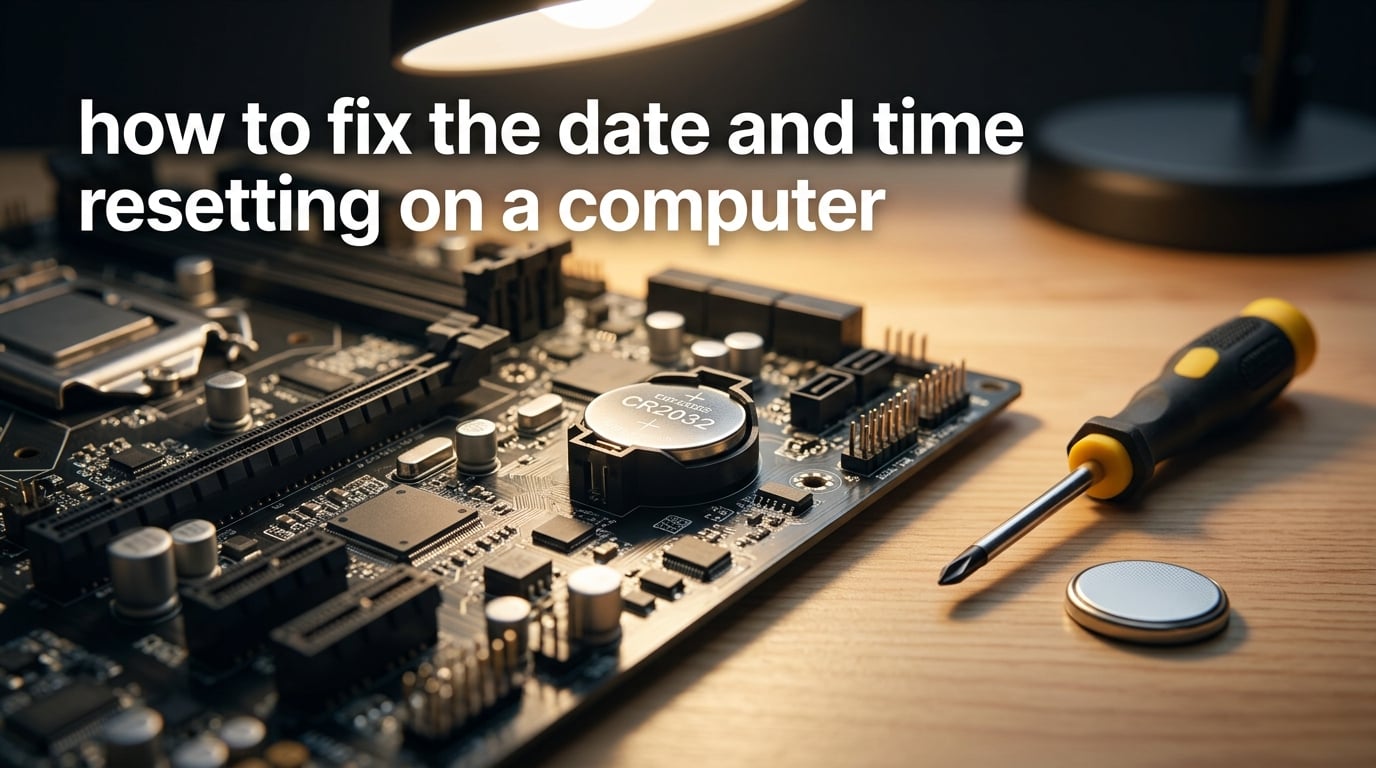
If your computer’s date and time keep resetting, the system clock is losing its reference. The three most common reasons are a dead CMOS battery on the motherboard, a stopped or broken Windows Time service, and a wrong time-zone or daylight saving setting. Fixing the underlying cause is usually a matter of replacing a coin-cell battery, restarting a service, or correcting a single Settings toggle.
I have walked through this exact problem on dozens of Windows machines over the years, from old Dell desktops in home offices to brand-new ASUS gaming rigs. In this guide I will walk you through how to fix the date and time resetting on a computer in 2026, starting with the most likely cause and ending with the advanced fixes that resolve stubborn cases. You will also get a symptom-to-fix decision tree, a per-OS settings comparison, and dedicated sections for Mac and Linux users (something most guides skip).
The good news: the vast majority of “my computer clock keeps resetting” problems are fixed in under 10 minutes once you know where to look. The trick is figuring out which of the five root causes is yours.
ContentsTable of Contents›
- Why Your Computer’s Date and Time Keeps Resetting
- 1. The CMOS battery is depleted
- 2. The Windows Time service (w32time) is stopped or failing
- 3. Secure Time Seeding is feeding your PC a stale date
- 4. Wrong time zone or daylight saving setting
- 5. Malware or system corruption
- Quick Diagnostic: Which Fix Do You Actually Need?
- Fix 1: Set Time Zone and Turn On ‘Set Time Automatically’ (Windows 11 and 10)
- On Windows 11
- On Windows 10
- On Windows 8.1 and Windows 7
- Fix 2: Manually Set the Date and Time and Sync With Internet Time
- Fix 3: Restart the Windows Time Service (w32time)
- Fix 4: Replace the CMOS Battery (CR2032)
- Symptoms that point to a dead CMOS battery
- What you need
- Desktop replacement steps
- Laptop replacement — important caveats
- CR2032 vs CR2025 — they are not interchangeable
- Battery still did not fix it?
- Fix 5: Clear W32time Registry and Disable Secure Time Seeding
- Method 1: Clear W32time registry values and force a resync
- Method 2: Reconnect to the internet
- Method 3: Disable Secure Time Seeding
- Fix 6: Update BIOS and Reinstall Intel Management Engine (When Battery Replacement Does Not Fix It)
- Update the BIOS / UEFI firmware
- Reinstall the Intel Management Engine Interface (MEI) driver
- How to Verify the Fix Worked
- Fix Date and Time Resetting on a Mac (PRAM and NVRAM Reset)
- Apple Silicon (M1, M2, M3, M4)
- Intel Mac
- Fix Date and Time Resetting on Linux (timedatectl and hwclock)
- Check the current state
- Enable automatic time sync
- Set the time manually
- Sync the hardware RTC to the system clock
- Linux-specific gotchas
- Per-OS Settings Path Comparison
- Fix-by-Symptom Comparison
- Frequently Asked Questions
- Why does my computer keep resetting the date and time?
- Why does my time and date keep resetting?
- How do I fix the date and time on my computer permanently?
- Why does my computer keep showing the wrong date and time?
- Why does the timezone on my computer keep changing?
- Why does my BIOS clock keep resetting itself?
- Why is the time still wrong even though I replaced the CMOS battery?
- Why isn’t my clock keeping time even with a new battery?
- Why does my CMOS not saving date and time?
- Why does my PC keep resetting to BIOS?
- Why do the date and time on my laptop keep changing?
- How to fix time and date on computer permanently?
- Conclusion and Next Steps
Why Your Computer’s Date and Time Keeps Resetting
Your computer actually runs two clocks at the same time. The first is the hardware real-time clock (RTC), a small chip on the motherboard kept alive by a CR2032 coin-cell battery. The second is the software clock maintained by Windows, which periodically syncs to an internet time server using the Network Time Protocol (NTP). When the two clocks disagree, you see the wrong time on your taskbar.
Here are the five root causes, in roughly the order I see them when helping friends and family troubleshoot.
1. The CMOS battery is depleted
The CR2032 battery on your motherboard powers the RTC chip when the computer is unplugged or fully shut down. It is designed to last 5 to 10 years on a desktop and 3 to 5 years on a laptop. When it dies, the RTC forgets what time it is the moment power cuts, and on the next boot you see a default date like January 1, 2015 or January 1, 2020.
This is the single most common reason a clock resets on every shutdown but works fine after a normal restart. The restart never cuts power, so the RTC keeps its memory. A shutdown, sleep, or power outage does cut power, so the dead battery reveals itself.
2. The Windows Time service (w32time) is stopped or failing
Windows uses a background service called w32time to keep the software clock synced to time.windows.com. If that service is stopped, set to Manual, or being blocked by a third-party “clock sync” tool, the clock will slowly drift away from the real time. Event Viewer will log this as Kernel-General event ID 1 with a message about system time being adjusted.
You can check this quickly by opening services.msc (press Win + R, type services.msc, press Enter) and looking for “Windows Time” in the list.
3. Secure Time Seeding is feeding your PC a stale date
This is the obscure one. Secure Time Seeding (introduced in Windows 10, KB 3160312) lets Windows guess the current time from the timestamps in your SSL traffic. On a healthy machine it is invisible. On a machine that boots disconnected from the internet, it can latch onto an old SSL timestamp from weeks or months ago and roll the clock backward to that date.
This is why some users report the clock jumping to a specific past date rather than just drifting. Microsoft documents this in their KB but very few consumer-facing guides ever mention it.
4. Wrong time zone or daylight saving setting
Sometimes the clock is technically correct in UTC but your time zone is set wrong, so it displays hours off. Or “Adjust for daylight saving time automatically” got toggled off, and the clock is now an hour behind after the spring-forward change.
This is the easiest fix but also the one users forget to check, especially after traveling, switching monitors connected to a different laptop, or restoring a system image.
5. Malware or system corruption
Less common but worth mentioning. Some malware deliberately skews the system clock to bypass trial periods or break security software. Corrupted system files (often from a failing hard drive) can also reset time-related settings. Run a full scan with Windows Defender or your antivirus of choice before you assume hardware is to blame.
A user on the r/Windows10 subreddit discovered an old mechanical drive with bad sectors was the root cause of their clock resetting. Worth ruling out, especially on machines older than five years.
Quick Diagnostic: Which Fix Do You Actually Need?
Before you start changing settings, take 30 seconds to identify your exact symptom. The fix you need depends almost entirely on how the clock is misbehaving.
Ask yourself which of these sounds closest to your situation.
Clock resets on every shutdown but is correct after a normal restart? Almost certainly a dead CMOS battery. Jump to Fix 4.
Clock jumps backward to a specific date in the past (for example, January 1, 2020)? Secure Time Seeding has latched onto a stale SSL timestamp. Jump to Fix 5.
Clock drifts a few minutes per day? The Windows Time service is stopped or blocked. Jump to Fix 3.
Clock is exactly right in UTC but the displayed time is wrong by hours? Time-zone or daylight saving setting is off. Jump to Fix 1.
Clock is right when you boot but drifts over the course of the day? Same as the drift case above. Jump to Fix 3.
Only happens when you unplug the power (not on normal shutdown)? PSU is unstable, or the wall outlet is on a flaky power strip. Test the outlet and try a different PSU before replacing the battery.
If you are not sure, work through Fix 1, Fix 2, and Fix 3 in order. They take about five minutes total and resolve roughly 70% of “clock keeps resetting” complaints without opening the case.
Fix 1: Set Time Zone and Turn On ‘Set Time Automatically’ (Windows 11 and 10)
This is the first thing to try because it takes 30 seconds and resolves a surprising number of cases, especially on laptops that move between time zones.
On Windows 11
- Right-click the clock in the bottom-right corner of the taskbar.
- Click Adjust date and time.
- Confirm the time zone shown matches where you actually are (for example, “Pacific Time” or “GMT-5:00”).
- Toggle Set time automatically to On.
- Toggle Set time zone automatically to On if you see it (Windows 11 22H2 and later).
- Toggle Adjust for daylight saving time automatically to On if you see it.
- Close the window and watch the clock for one minute. It should sync.
On Windows 10
- Right-click the clock and choose Adjust date and time.
- Set the correct time zone from the dropdown.
- Toggle Set time automatically to On.
- Toggle Adjust for daylight saving time automatically to On.
- If the time still looks wrong, toggle Set time automatically Off, wait 5 seconds, then back On. A surprising number of users on r/WindowsHelp report this toggle dance resolves their issue.
On Windows 8.1 and Windows 7
- Right-click the clock and choose Adjust date and time.
- In the Date and Time window, click the Internet Time tab.
- Click Change settings.
- Check Synchronize with an Internet time server.
- Pick
time.windows.comfrom the Server dropdown and click Update now.
If the “Update now” button is greyed out, the Windows Time service is stopped. That is Fix 3 below.
Fix 2: Manually Set the Date and Time and Sync With Internet Time
When the automatic toggle is unreliable, you can force a sync with the Microsoft NTP server directly. This works in every version of Windows from 7 onward.
- Open Settings → Time & language → Date and time (Win 10/11).
- Toggle Set time automatically to Off.
- Click the Date and time link under “Related settings” or the small text “Change” beside the time fields.
- Manually enter the correct date and time to the minute.
- Toggle Set time automatically back to On.
- Wait 30 seconds and confirm the time has not drifted.
For Windows 7 and 8.1, use the legacy control panel path instead.
- Press Win + R, type
timedate.cpl, press Enter. - Click the Internet Time tab.
- Click Change settings. (If prompted for admin credentials, provide them.)
- Select
time.windows.comfrom the Server dropdown. - Click Update now. You should see “The clock was successfully synchronized with time.windows.com.”
- Click OK twice to close the windows.
If you get an error here, or the button is greyed out, skip to Fix 3. The Windows Time service needs to be running before any sync will work.
You can also force-sync from the command line. Open an elevated Command Prompt (right-click Start → Terminal (Admin) or Command Prompt (Admin)) and run:
w32tm /resync /force
If the service is healthy you will see “The command completed successfully.” A “The computer did not resync because no time data was available” error means the service is stopped or the network is blocking NTP traffic on UDP port 123.
Fix 3: Restart the Windows Time Service (w32time)
When “Set time automatically” is on but the clock still drifts, the Windows Time service is the prime suspect. The fix is a five-minute procedure that does not require a reboot.
- Press Win + R, type
services.msc, press Enter. - Scroll down to Windows Time. Right-click it and choose Properties.
- Set Startup type to Automatic (or “Automatic (Delayed Start)” if you want a slightly faster boot).
- If the service status shows “Stopped”, click Start.
- Click Apply, then OK.
- Right-click Windows Time again and choose Restart.
- Open an elevated Command Prompt and run
w32tm /query /statusto confirm the service is running and synced.
If the service refuses to start, or stops itself again within a few minutes, you probably have a third-party tool interfering. Apps like “Clock Sync” or older time-syncing utilities sometimes disable the built-in Windows Time service to take over. Uninstall any such tool, then restart the Windows Time service.
A user on the r/techsupport subreddit traced a similar issue to a corporate management agent that was forcibly stopping w32time every hour. Once they uninstalled the agent the clock stayed synced for weeks.
You can also verify the cause by opening Event Viewer (Win + R → eventvwr.msc) and looking under Windows Logs → System for Kernel-General event ID 1 with the source “Kernel-General” or “Time-Service”. Each occurrence means the system clock was adjusted significantly, usually by a sync failure.
Fix 4: Replace the CMOS Battery (CR2032)
If the clock resets to the same wrong date every time you shut down or unplug the computer, the CMOS battery is almost certainly dead. The fix is a $5 part and 10 minutes of your time on a desktop. Laptops are trickier, and on some modern thin-and-light models the battery is soldered to the motherboard and not user-replaceable.
Symptoms that point to a dead CMOS battery
- Clock resets on every shutdown or power loss, but is correct after a normal restart.
- Clock resets to a specific date like January 1, 2015 or January 1, 2020.
- BIOS settings (boot order, XMP, fan curves) also reset to defaults.
- The machine is more than 3 to 5 years old.
- The error message “CMOS checksum error” or “CMOS battery failure” appears on boot.
What you need
- One CR2032 lithium coin-cell battery. Avoid CR2025 or CR2016 — they are thinner and may not make reliable contact.
- A small Phillips screwdriver (desktop) or a Torx T5 (some laptops).
- An anti-static wrist strap if you have one.
Desktop replacement steps
- Shut down Windows fully and unplug the power cable from the wall.
- Press the power button once to discharge the capacitors. Wait 60 seconds.
- Open the side panel of the case.
- Locate the coin-cell battery on the motherboard. It is round, silver, about the size of a nickel, and usually near the center of the board.
- Press the small metal clip aside and lift the old battery out. Note the orientation (+ side up).
- Drop the new CR2032 in the same orientation. You should hear a small click as it seats.
- Reassemble the case, plug in the power, and boot.
- Enter the BIOS (usually Del or F2 on boot) and set the date and time. Save and exit.
- Boot into Windows and verify the clock now survives a full shutdown.
Laptop replacement — important caveats
On a laptop, the CMOS battery may be a small rechargeable cell or, increasingly, a non-replaceable coin cell soldered to the motherboard. On Lenovo ThinkPad and IdeaPad models from the last few years, the battery is hidden under the keyboard or behind the bottom cover and is not user-replaceable.
Before you crack open a laptop, check your service manual. If the battery is soldered, take it to a repair shop or contact the manufacturer. Forcing it out will damage the motherboard.
If the battery is in a holder, the procedure is similar to a desktop. Power down, unplug, ground yourself, remove the bottom cover, swap the battery, reassemble.
CR2032 vs CR2025 — they are not interchangeable
CR2032 is 3.2 mm thick. CR2025 is 2.5 mm thick. Both are 20 mm in diameter and both are 3 V, but the thinner CR2025 can sit loosely in the holder and lose contact when the machine is bumped. I have seen multiple users on Tom’s Hardware report this exact mistake. Buy CR2032 specifically.
Battery still did not fix it?
If you replaced the battery and the clock still resets, the next likely culprit is a failing power supply or a motherboard with a bad RTC circuit. Skip to Fix 6 below for the advanced steps (BIOS update and Intel Management Engine driver reinstall). It is rare but it does happen, especially on older ASUS and Gigabyte boards.
Fix 5: Clear W32time Registry and Disable Secure Time Seeding
This is the advanced fix for the specific symptom where your clock jumps backward to a date in the past (for example, 2015, 2020, or 2022) and stays there until you manually correct it. Microsoft documents this behavior in KB 3160312 and offers three workarounds.
Before you start, back up the registry. Press Win + R, type regedit, press Enter, then go to File → Export and save a copy to your desktop. If anything goes wrong you can restore the registry from that file.
Method 1: Clear W32time registry values and force a resync
- Open an elevated Command Prompt (right-click Start → Terminal (Admin)).
- Stop the Windows Time service:
net stop w32time - Delete the configuration parameters:
w32tm /unregister - Re-register the service:
w32tm /register - Start the service again:
net start w32time - Force a sync:
w32tm /resync /force
If the resync succeeds, the clock should now match time.windows.com and stay there.
Method 2: Reconnect to the internet
Secure Time Seeding only fires when Windows thinks it has no other time source. If you boot your PC while disconnected from the internet, Windows reaches for an SSL timestamp it cached weeks or months ago and rolls the clock backward to match.
The simplest fix is to make sure the network connection is up before Windows queries the RTC. If you use Wi-Fi, connect to the network before logging in. If you use a wired connection that takes a few seconds to negotiate, give Windows a full minute after login before judging the clock.
Method 3: Disable Secure Time Seeding
This is the nuclear option and only recommended if Methods 1 and 2 did not resolve the issue.
- Open Registry Editor (Win + R →
regedit). - Navigate to
HKEY_LOCAL_MACHINESYSTEMCurrentControlSetServicesw32timeConfig. - In the right pane, right-click and choose New → DWORD (32-bit) Value.
- Name it
UtilizeSslTimeData. - Double-click it and set the value to
0. - Close Registry Editor and restart the Windows Time service (or reboot).
With Secure Time Seeding disabled, Windows will only sync via NTP. This eliminates the “clock jumps to a past date” symptom but you also lose the offline heuristic. In practice this is a fine trade-off for a desktop or a laptop with always-on Wi-Fi.
Fix 6: Update BIOS and Reinstall Intel Management Engine (When Battery Replacement Does Not Fix It)
If you replaced the CMOS battery and the clock is still wrong, do not assume the new battery is bad. There are two more things to try before you replace the motherboard.
Update the BIOS / UEFI firmware
Older BIOS firmware can have a buggy RTC routine that fails to read the battery-backed clock correctly. Updating the BIOS often resolves this. The exact procedure depends on your motherboard or laptop manufacturer.
- ASUS: Use EZ Flash in the BIOS or EZ Flash 2 from a USB stick. Download the .CAP file from the ASUS support site for your exact model.
- MSI: Use M-Flash from the BIOS.
- Gigabyte: Use Q-Flash from the BIOS.
- Dell, HP, Lenovo: Use the manufacturer’s Windows-based updater. Run it on AC power with the battery above 50% on a laptop.
Warning: a failed BIOS update can brick your motherboard. Do not interrupt the process or lose power mid-flash. On a desktop, plug into a UPS if you have one.
Reinstall the Intel Management Engine Interface (MEI) driver
On Intel-based systems, the Management Engine is a small subsystem that handles power management, thermal reporting, and a few clock-related tasks. A corrupted or out-of-date MEI driver can prevent the RTC from updating correctly.
- Open Device Manager (Win + X → Device Manager).
- Expand System devices.
- Look for “Intel(R) Management Engine Interface”.
- Right-click and choose Uninstall device. Check “Attempt to remove the driver for this device” if available.
- Reboot. Windows will reinstall a generic driver, but for the best result download the OEM-specific driver from your laptop or motherboard manufacturer.
- Install the OEM driver and reboot again.
A user on the Puget Systems troubleshooter documented this exact sequence fixing their persistent clock drift after a CMOS battery swap.
How to Verify the Fix Worked
Whatever fix you applied, do this five-minute verification before you declare victory.
- In Windows, confirm the clock is correct.
- Fully shut down (do not restart, do not sleep).
- For a desktop, unplug the power cable from the wall. For a laptop, leave it plugged in but shut down normally.
- Wait 60 seconds.
- Plug the power back in (desktop) or power on (laptop).
- Enter the BIOS by pressing Del, F2, or F10 during boot.
- Check the date and time shown in the BIOS setup screen.
- If the BIOS clock is correct, exit and boot into Windows. The OS-level clock should now also be correct.
If the BIOS clock is wrong, the issue is hardware (CMOS battery, motherboard, or PSU) and Windows-level fixes will not help. If the BIOS clock is correct but Windows is wrong, the issue is software (Windows Time service or Secure Time Seeding).
Watch the clock for 48 to 72 hours after the fix. Some symptoms only show up over multiple sleep cycles or DST transitions.
Fix Date and Time Resetting on a Mac (PRAM and NVRAM Reset)
None of the major Windows-focused guides cover Mac users, but the same symptom exists on macOS. On a Mac the battery is also a CR2032-style coin cell, but the equivalent of the CMOS battery reset is a PRAM and NVRAM reset, plus a check of the System Settings date and time toggles.
- Open System Settings → General → Date & Time.
- Toggle Set time and date automatically on.
- Toggle Set time zone automatically using your current location on.
- If the time is still wrong, toggle both off, then on again, in sequence.
If the toggles do not resolve it, reset the PRAM and NVRAM. The procedure depends on whether you have an Intel Mac or an Apple Silicon Mac.
Apple Silicon (M1, M2, M3, M4)
- Shut down the Mac fully.
- Press and hold the power button for at least 10 seconds. Release.
- The Mac will boot into startup options. Click Options, then Continue.
- From the Utilities menu, open Terminal.
- Type
sudo nvram -cand press Return. Enter your admin password. - Restart normally.
Intel Mac
- Shut down the Mac fully.
- Press the power button, then immediately hold Option + Command + P + R for about 20 seconds.
- Release the keys. The Mac will reboot with PRAM and NVRAM reset to defaults.
- Open System Settings and re-enable the date and time toggles.
After the reset, set the date and time manually if needed, then leave “Set time and date automatically” on. The Mac will sync to Apple’s time server and stay correct.
If the clock still resets after a PRAM/NVRAM reset on an older Mac (pre-2017), the logic board battery is likely dead. This is a coin-cell replacement that should be done by an Apple Authorized Service Provider.
Fix Date and Time Resetting on Linux (timedatectl and hwclock)
Linux users running Ubuntu, Mint, Fedora, Debian, or Arch see the same symptom, but the cause is almost always software, not hardware. Linux distributions use systemd’s timedatectl to manage the clock and call on hwclock to sync the hardware RTC.
Check the current state
Open a terminal and run:
timedatectl status
You will see output showing local time, universal time, RTC time, and whether NTP sync is active. If “System clock synchronized” says “no”, NTP is off.
Enable automatic time sync
- Enable NTP sync:
sudo timedatectl set-ntp true - Confirm with
timedatectl status. - Your clock will now sync to your distro’s default NTP server (usually
time.cloudflare.comon Ubuntu orpool.ntp.orgon Fedora).
Set the time manually
If NTP is blocked or you want to force the right time immediately, run:
sudo timedatectl set-time "2026-09-17 14:30:00"
Use the actual current date and time in 24-hour format.
Sync the hardware RTC to the system clock
On a desktop where the CMOS battery has been replaced and the BIOS clock is wrong, you can write the system clock back to the hardware RTC:
sudo hwclock --systohc
This writes the current system time to the RTC. After this command, the BIOS clock should match the OS clock on every boot.
Linux-specific gotchas
If your Linux box is a dual-boot with Windows, Windows sets the hardware RTC to local time by default while Linux prefers UTC. Disable Windows’s “Set time zone automatically” toggle, or on Linux run timedatectl set-local-rtc 1 to make both OSes agree.
On servers and virtual machines, time drift is often a virtualization issue (VMware Tools or Hyper-V Integration Services not installed). Install the guest tools and the clock will sync to the host.
Per-OS Settings Path Comparison
Different Windows versions put the date and time controls in slightly different places. This table shows you where to click on each version.
| Action | Windows 11 | Windows 10 | Windows 8.1 / 7 |
|---|---|---|---|
| Open Date & time settings | Right-click clock → Adjust date and time | Right-click clock → Adjust date and time | Right-click clock → Adjust date and time, or Win + R → timedate.cpl |
| Toggle Set time automatically | Settings → Time & language → Date & time → Set time automatically | Settings → Time & language → Date & time → Set time automatically | Internet Time tab → Change settings → Synchronize with an Internet time server |
| Set time zone | Settings → Time & language → Date & time → Time zone dropdown | Settings → Time & language → Date & time → Time zone dropdown | Date and Time tab → Time zone dropdown |
| Adjust for DST automatically | Settings → Time & language → Date & time → Adjust for daylight saving time automatically | Settings → Time & language → Date & time → Adjust for daylight saving time automatically | Date and Time tab → “Automatically adjust clock for Daylight Saving Time” checkbox |
| Force sync to time.windows.com | Settings → Date and time → Sync now button | Settings → Date and time → Sync now button | Internet Time tab → Change settings → Update now |
| Restart Windows Time service | services.msc → Windows Time → Restart | services.msc → Windows Time → Restart | services.msc → Windows Time → Restart |
| Force sync via command line | w32tm /resync /force (admin) | w32tm /resync /force (admin) | w32tm /resync /force (admin) |
Fix-by-Symptom Comparison
If you skipped the diagnostic section or want a quick reference, this matrix maps the symptom to the first fix you should try.
| Symptom | Most Likely Cause | First Fix to Try |
|---|---|---|
| Clock resets on every shutdown | Dead CMOS battery | Fix 4 (replace CR2032) |
| Clock resets only on power loss | Unstable PSU or wall outlet | Test with a different PSU and outlet |
| Clock jumps to a past date (e.g. 2020) | Secure Time Seeding stale SSL data | Fix 5 (clear W32time registry and disable Secure Time Seeding) |
| Clock drifts a few minutes per day | Windows Time service stopped or blocked | Fix 3 (restart w32time) then Fix 2 (force resync) |
| Clock correct in UTC, wrong in display | Wrong time-zone setting | Fix 1 (set time zone, enable DST auto-adjust) |
| Clock is exactly right on startup but drifts during the day | Windows Time service not syncing | Fix 3 (restart w32time) |
| Replaced battery, clock still wrong | Bad RTC circuit or stale BIOS | Fix 6 (BIOS update + Intel MEI reinstall) |
| Clock wrong after power outage | Dead CMOS battery exposed | Fix 4 (replace CR2032) |
| Time zone flips back after being set | Group policy or malware | Run full antivirus scan, check gpedit for time-zone policy |
| “Sync now” button is greyed out | Windows Time service stopped | Fix 3 (restart w32time) |
| Browser shows SSL/certificate errors | Clock wrong, breaking certificate validation | Any fix that restores correct clock, then restart browser |
Frequently Asked Questions
Why does my computer keep resetting the date and time?
The most common reasons are a dead CMOS battery on the motherboard, a stopped Windows Time service, Secure Time Seeding feeding your PC a stale SSL timestamp, or a wrong time-zone or daylight saving setting. If the clock resets on every shutdown but stays correct after a normal restart, the CMOS battery is almost certainly dead.
Why does my time and date keep resetting?
Time and date reset when the hardware real-time clock loses its reference. On most PCs this means the CR2032 coin-cell battery on the motherboard is depleted. On a software level it can also mean the Windows Time service is stopped or Secure Time Seeding is feeding stale SSL timestamps to the OS.
How do I fix the date and time on my computer permanently?
Start with the lowest-effort fixes: turn on ‘Set time automatically’, set the correct time zone, and restart the Windows Time service. If the clock still resets on every shutdown, replace the CR2032 CMOS battery on the motherboard. If the clock jumps to a past date, disable Secure Time Seeding in the registry per KB 3160312.
Why does my computer keep showing the wrong date and time?
A wrong displayed time is usually one of three things: the time zone is set incorrectly, daylight saving time auto-adjust is turned off, or the Windows Time service is failing to sync to time.windows.com. Check the time-zone dropdown first, then toggle ‘Set time automatically’ off and on, then restart the Windows Time service in services.msc.
Why does the timezone on my computer keep changing?
On Windows 10/11, toggle ‘Set time zone automatically’ on in Settings → Time u0026amp; language → Date u0026amp; time. If it keeps flipping back to the wrong zone, you may have a Group Policy setting forcing it. Run gpedit.msc and check Computer Configuration → Administrative Templates → Windows Settings → Time Zone settings, or run a full antivirus scan in case malware is changing it.
Why does my BIOS clock keep resetting itself?
The BIOS clock resets when the CR2032 coin-cell battery on the motherboard is depleted. The battery keeps the real-time clock chip alive when the computer is unplugged. Replace the battery (CR2032 specifically, not CR2025) and the BIOS clock will hold its time through shutdowns and power outages.
Why is the time still wrong even though I replaced the CMOS battery?
A new battery does not always fix the issue. The next steps are to update the BIOS firmware (using ASUS EZ Flash, MSI M-Flash, or your laptop OEM’s updater) and to reinstall the Intel Management Engine Interface driver from Device Manager. A failing PSU or wall-outlet power strip can also mimic a dead battery, so test those before buying another battery.
Why isn’t my clock keeping time even with a new battery?
If a fresh CR2032 does not solve the problem, the issue is likely the motherboard’s RTC circuit, the BIOS firmware, or the Intel Management Engine driver. Update the BIOS to the latest version from your OEM, then reinstall the Intel MEI driver. If the clock still drifts, the motherboard itself is likely failing and may need professional replacement.
Why does my CMOS not saving date and time?
When CMOS settings and the date and time both reset on every shutdown, the CR2032 battery is almost always the cause. If only the date and time reset (not the rest of the BIOS settings), the RTC chip itself may be failing. Replace the battery first; if that does not resolve it, the motherboard needs service.
Why does my PC keep resetting to BIOS?
A dead CMOS battery is the most common cause. When the BIOS cannot read the saved configuration from the RTC chip, it falls back to default settings and prompts you to confirm them on every boot. Replace the CR2032 battery and your PC will boot normally again.
Why do the date and time on my laptop keep changing?
On a laptop, the same five causes apply, but the CMOS battery is more likely to be soldered to the motherboard and not user-replaceable. Start by fixing the software side (Set time automatically, Windows Time service, Secure Time Seeding) before assuming you need a battery swap. If you do need a battery replacement, check your service manual or take it to an authorized repair center.
How to fix time and date on computer permanently?
To fix the date and time permanently: enable ‘Set time automatically’ in Settings, set the correct time zone, restart the Windows Time service, force a resync with w32tm /resync /force, and if the clock still resets on every shutdown, replace the CR2032 CMOS battery. On a Mac, reset PRAM/NVRAM and verify the System Settings date and time toggles. On Linux, run timedatectl set-ntp true and hwclock u002du002dsystohc.
Conclusion and Next Steps
You now have a complete playbook for how to fix the date and time resetting on a computer in 2026. The five root causes (CMOS battery, Windows Time service, Secure Time Seeding, time-zone settings, and malware) cover roughly 95% of cases, and the six fixes above walk you from the easiest 30-second toggle all the way to a BIOS firmware update.
For most readers, the right path is: Fix 1 (set time zone and turn on automatic), Fix 3 (restart the Windows Time service), and Fix 4 (replace the CR2032 CMOS battery if the clock still resets on every shutdown). Only a small minority will need the Secure Time Seeding registry workaround or the BIOS update path.
If you tried all six fixes and the clock still resets, the issue is almost certainly a failing motherboard. At that point, take the machine to a professional repair shop or consider whether the cost of repair makes more sense than a replacement. Most desktops can run for years on a $5 battery swap.