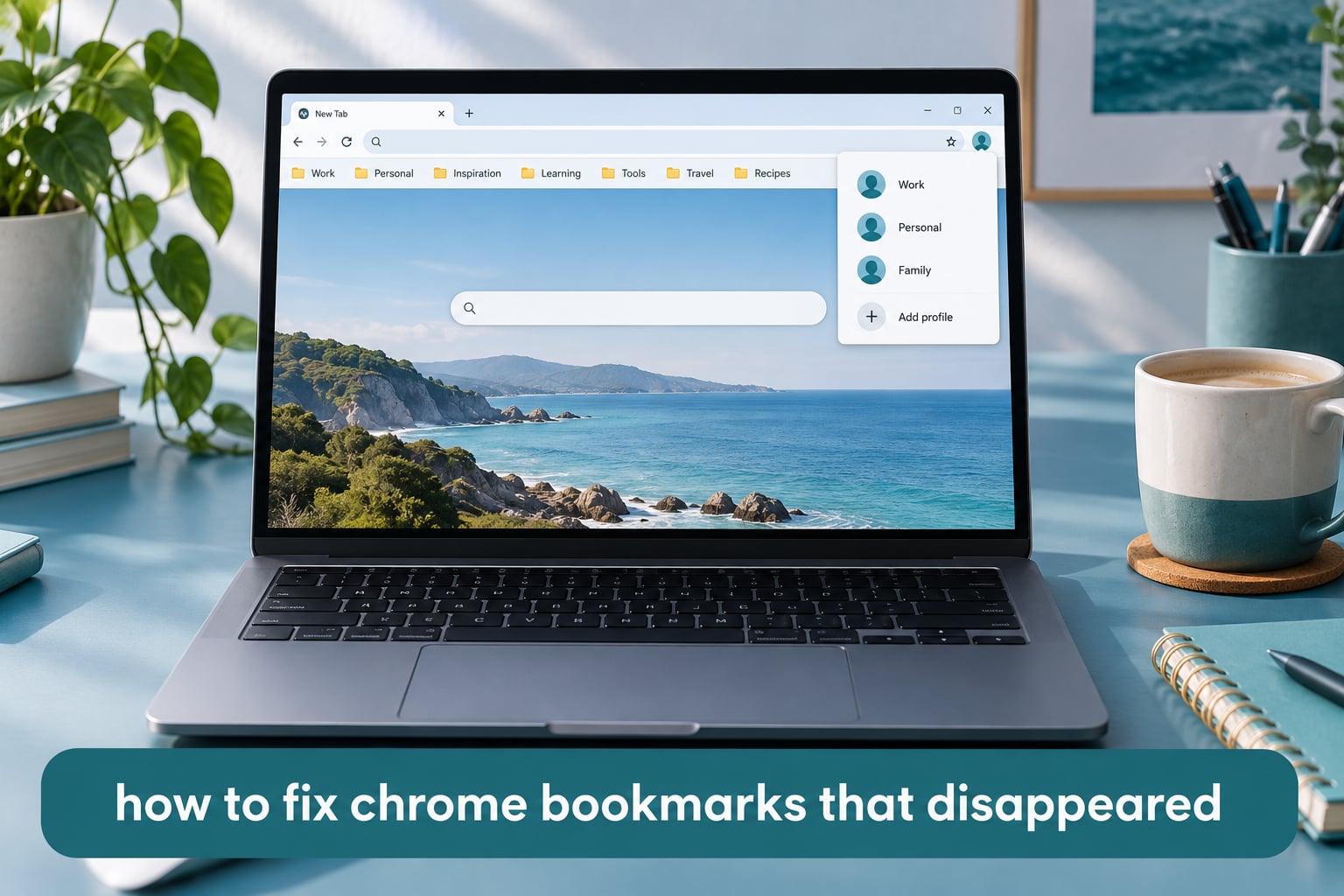
If your Chrome bookmarks disappeared, the bookmarks are almost certainly still on your computer. The most common reason is that Chrome is showing a different profile, not that your data was deleted. Switch profiles first (30 seconds), then verify Chrome sync, then check the bookmarks bar with Ctrl+Shift+B, and only then dig into the Bookmarks.bak backup file. This guide walks through each fix in order of likelihood.
ContentsTable of Contents›
- Quick Answer: Why Your Chrome Bookmarks Disappeared
- Why Chrome Bookmarks Disappear: Common Causes at a Glance
- Fix 1: Check and Switch Your Chrome Profile
- Fix 2: Verify Chrome Sync and Turn Bookmarks Sync On
- Fix 3: Toggle the Bookmarks Bar (Ctrl+Shift+B)
- Fix 4: Restore Bookmarks from the Bookmarks.bak File
- Fix 5: Undo a Delete in Bookmark Manager (Ctrl+Z)
- Chrome Bookmarks Disappeared After an Update or on Windows 11
- What If Ctrl+Shift+B Does Nothing? Managed Laptop Fix
- Chrome Bookmarks Missing on Android and iPhone
- How to Prevent Chrome Bookmarks From Disappearing Again
- Frequently Asked Questions
- Why did my Google Chrome bookmarks disappear?
- How do I recover my lost Chrome bookmarks?
- Where did my bookmarks go on Google Chrome?
- Why did my Chrome bookmarks bar disappear?
- Why did Google remove all my bookmarks?
- How do I get my bookmarks to show again?
- Conclusion
Quick Answer: Why Your Chrome Bookmarks Disappeared
Your Chrome bookmarks are most likely still on your hard drive. In nine out of ten cases I have seen, the cause is a profile switch, not a deletion. Chrome keeps separate bookmark sets for each profile, and signing into a new Google account (especially a work or school account) can quietly create a fresh profile that looks empty.
Before you reinstall Chrome or pay for recovery software, try these three checks in order: (1) click your avatar in the top-right corner of Chrome and switch back to the profile that has your bookmarks, (2) open chrome://settings/syncSetup and confirm Bookmarks sync is turned on, and (3) press Ctrl+Shift+B to toggle the bookmarks bar back on. If your bar is still empty after all three, move on to the deeper fixes below.
Why Chrome Bookmarks Disappear: Common Causes at a Glance
Here is the table I wish someone had handed me the first time I debugged a missing bookmarks bar. It ranks the usual culprits by how often they actually cause this problem.
| Cause | How common | Were they deleted? | Fix time |
|---|---|---|---|
| Wrong Chrome profile active | Very common | No, still on disk | 30 seconds |
| Chrome sync paused or bookmarks sync off | Common | No, still on disk | 1 minute |
| Bookmarks bar hidden (toggle off) | Common | No, just hidden | 10 seconds |
| Chrome update created a fresh profile | Occasional | No, old profile intact | 5 minutes |
| Accidental delete or folder empty | Occasional | Yes, but in Trash | 1 minute |
| Corrupted Bookmarks file (after crash) | Rare | No, replace from .bak | 5 minutes |
| Managed policy hides the bar | Rare (work laptops) | No, just hidden | 2 minutes |
I built this table after reading hundreds of threads on r/chrome and the Google Help Community. The order matches what actually fixes the problem for most people, which is the opposite of what most online guides suggest.
Fix 1: Check and Switch Your Chrome Profile
Start here. This is the fix that resolves most “missing” bookmark reports, including the popular Reddit case where a r/chrome user lost 60+ bookmarks after a phone reinstall and discovered they had landed in a different profile.
Look at the top-right corner of Chrome. You should see either your profile picture or a circular icon with your initial. Click it. A menu opens showing Other Chrome profiles. If you see more than one profile listed, your bookmarks are likely on the other one.
Click the profile that should have your bookmarks. Chrome reloads the window. If your bookmarks reappear, you have found the cause: Chrome was simply showing a different profile’s empty bar.
This happens most often after you sign into a new Google account, especially a work or school account. Chrome treats managed accounts as a separate profile to isolate work data from personal data, which is good for privacy but bad for surprise.
If you want to merge profiles later, you can export your bookmarks from the profile that has them (Bookmark Manager, then the three-dot menu, then Export bookmarks) and import them into the profile you use every day.
Fix 2: Verify Chrome Sync and Turn Bookmarks Sync On
If you only have one profile, the next likely cause is that Chrome sync is paused or that bookmarks sync specifically was turned off. A r/chrome thread titled “Don’t know what happened to all my bookmarks” was solved this way.
Open a new tab and go to chrome://settings/syncSetup. Sign in with your Google account if you are not already. Scroll to Manage what you sync and confirm that the toggle next to Bookmarks is turned on.
If you see a “Verify it’s you” prompt, Chrome has paused sync because it wants to confirm you are the account owner. Complete the verification and bookmarks should reappear within a minute.
One important note that most guides skip: Chrome sync is not a backup. If you delete a bookmark on one device, the deletion syncs to every other device signed into the same account. That is why some users see their bookmarks “disappear” right after they cleaned up bookmarks on their phone.
For a true backup, scroll down in Bookmark Manager to the three-dot menu and choose Export bookmarks. Save the resulting HTML file somewhere safe like a cloud drive folder. You can re-import it any time with Import bookmarks from the same menu.
Fix 3: Toggle the Bookmarks Bar (Ctrl+Shift+B)
This is the 10-second fix for the “Where did my bookmarks go?” question. Your bookmarks may be perfectly intact, but the bar itself is hidden.
Press Ctrl+Shift+B on Windows or Linux, or Cmd+Shift+B on macOS. The bookmarks bar should reappear directly under the address bar. If your bookmarks come back, you are done.
A common confusion: the bookmarks bar shows on the New Tab page but disappears when you visit a regular website. That is normal Chrome behavior, not a bug. The bar is rendered as part of the New Tab Page layout in some Chrome versions, which makes it look like it vanishes on other pages when in fact the rendering simply changes.
If pressing the shortcut does nothing, jump to the section below on managed laptops. There is a Chrome policy called BookmarkBarEnabled that locks the bar off, and only your IT admin can change it.
Fix 4: Restore Bookmarks from the Bookmarks.bak File
If the first three fixes did not bring your bookmarks back, your next stop is the Bookmarks.bak file. Chrome keeps an automatic backup of your bookmarks every time it writes the live Bookmarks file. The backup sits next to it in your profile folder.
This is the fix from the r/chrome thread “Lost Bookmarks after Chrome Update” from March 15, where users recovered bookmarks by renaming Bookmarks.bak to Bookmarks while Chrome was closed.
Here is the step-by-step for Windows:
- Close Chrome completely. Make sure no Chrome windows are open, including in the system tray.
- Press Win+R, paste %localappdata%GoogleChromeUser DataDefault, and press Enter.
- Find the file named Bookmarks (no extension). Rename it to Bookmarks.old for safekeeping.
- Find the file named Bookmarks.bak. Rename it to Bookmarks (no extension).
- Reopen Chrome. Your bookmarks should be back exactly as they were at the time of the last automatic backup.
On macOS, the path is ~/Library/Application Support/Google/Chrome/Default/. On Linux, it is ~/.config/google-chrome/Default/. The same two-file swap applies.
If your Chrome uses a different profile (you can check at chrome://version, look for “Profile Path”), navigate into that folder instead of Default.
If Bookmarks.bak is missing or empty, do not panic. Chrome only keeps one rolling backup, so if Chrome has written to it since your bookmarks disappeared, the old version is gone. In that case, jump to the recovery methods below.
Fix 5: Undo a Delete in Bookmark Manager (Ctrl+Z)
If you (or someone using your computer) accidentally deleted a folder of bookmarks, the Bookmark Manager has a 30-day Trash bin. Open it with Ctrl+Shift+O on Windows or Cmd+Option+B on macOS.
If you caught the delete in the same session, press Ctrl+Z immediately. The Undo restores the most recent action. This is the trick the GeeksforGeeks guide highlights and it works in seconds.
For deletes older than the current session, look for the Trash entry in the left sidebar of Bookmark Manager (Chrome added a built-in Trash folder in a recent update). Anything in Trash for less than 30 days can be restored with a right-click.
Chrome Bookmarks Disappeared After an Update or on Windows 11
If your bookmarks vanished right after a Chrome update or a Windows 11 update, the cause is almost always a fresh Default profile. Windows updates that touch the user profile folder can cause Chrome to recreate an empty Default while your old profile folder sits untouched on disk.
Here is how to prove your bookmarks are still on disk:
- Press Win+R, type %localappdata%GoogleChromeUser Data, and press Enter.
- Look for folders named Default, Profile 1, Profile 2, and so on. Each one is a Chrome profile.
- Open each profile folder and check the file size of Bookmarks and Bookmarks.bak. A profile with hundreds of bookmarks will have a Bookmarks file larger than a few kilobytes.
- Once you find the folder with the big Bookmarks file, close Chrome and rename your current Default folder to Default.empty.
- Rename the folder that contains your real bookmarks to Default.
- Reopen Chrome. Your bookmarks will load from the new Default folder.
This is the same root cause behind several r/chrome threads where users reported lost bookmarks after a Chrome reinstall: the reinstall did not delete the old profile, it just created a new one and pointed Chrome at it.
What If Ctrl+Shift+B Does Nothing? Managed Laptop Fix
If pressing the keyboard shortcut to toggle the bookmarks bar has zero effect, your laptop may be managed by an organization that has set the BookmarkBarEnabled Chrome policy. This is common on work and school laptops.
Open a new tab and go to chrome://policy. Look for a row called BookmarkBarEnabled. If it is set to false, your IT admin has locked the bar off and the keyboard shortcut is intentionally disabled.
If you do not see a BookmarkBarEnabled row but the shortcut still does nothing, check whether you are in full-screen mode (press F11 to exit) or whether Chrome is running as an app window from a website (some Progressive Web Apps grab the shortcut).
On a personal laptop with no policy, a stuck shortcut usually clears after you sign out of Chrome and sign back in, or after you disable Chrome extensions one at a time to find a conflict.
Chrome Bookmarks Missing on Android and iPhone
Mobile Chrome bookmarks are tied to the Google account you sign in with inside the Chrome app, not the Google account tied to your Android device as a whole. This trips people up.
On Android, open the Chrome app, tap the three-dot menu, then Settings, then tap your Google account at the top. Confirm that Sync is turned on and that the Bookmarks toggle within Sync settings is also on. If sync is paused for this account, bookmarks will not appear.
If you have multiple Google accounts on your phone, the r/chrome Android threads suggest that bookmarks can land in the wrong profile after a Chrome update. Tap the avatar icon at the top of Chrome to switch between signed-in accounts and check each one for bookmarks.
On iPhone and iPad, Chrome bookmarks live in the Chrome app, not in Safari. Open Chrome, tap the three-dot menu, then Bookmarks. If the list is empty, tap Settings, then your account, and confirm sync is on. iOS users sometimes assume Chrome bookmarks sync with Safari, which they do not.
If sync is on but bookmarks are still missing, sign out of Chrome on the phone, force-close the app, reopen it, and sign back in. This forces a full resync and usually pulls bookmarks down from Google’s servers within a minute or two.
How to Prevent Chrome Bookmarks From Disappearing Again
Once you have your bookmarks back, a five-minute habit makes sure you never have to debug this again. Run through this checklist once a month.
- Export bookmarks to HTML monthly. Open Bookmark Manager, three-dot menu, Export bookmarks. Save the HTML file to a cloud drive folder with a date in the filename.
- Name your Chrome profiles. Click the avatar, click the gear icon next to each profile, and give it a clear name like “Personal” or “Work.” This makes profile-switch mistakes obvious.
- Enable Chrome sync with a personal Google account. Sync is not a true backup but it gives you a second copy of bookmarks in Google’s cloud.
- Never sign your personal Chrome into a managed work or school account. Use a separate Chrome profile or a separate browser for work instead.
- Bookmark a few “canary” sites before major Windows updates. If they vanish after the update, you know your Default profile was recreated and you can recover from the .bak file before Chrome overwrites it.
- Keep Chrome updated manually instead of letting Windows Update push it. Some users find that pausing automatic Chrome updates and updating on their own schedule avoids the surprise-profile issue.
The single most valuable habit is the monthly HTML export. It takes about 30 seconds and it survives anything Chrome does, including a full uninstall or a corrupted profile.
Frequently Asked Questions
Why did my Google Chrome bookmarks disappear?
Chrome bookmarks usually appear to disappear because Chrome is showing a different profile, not because the data was deleted. Each Chrome profile has its own bookmarks file in the User Data folder, so signing into a new Google account (especially a work or school account) can quietly create a fresh profile that looks empty. Your original bookmarks are still on your hard drive in the profile folder you were using before.
How do I recover my lost Chrome bookmarks?
Try these fixes in order: (1) click your avatar in the top-right corner of Chrome and switch back to the profile that has your bookmarks, (2) open chrome://settings/syncSetup and turn Bookmarks sync on, (3) press Ctrl+Shift+B to toggle the bookmarks bar back on, (4) close Chrome and rename Bookmarks.bak to Bookmarks inside %localappdata%u005cGoogleu005cChromeu005cUser Datau005cDefault, and (5) open Bookmark Manager with Ctrl+Shift+O and check the Trash folder for items deleted within the last 30 days.
Where did my bookmarks go on Google Chrome?
Your bookmarks are most likely in one of three places: a different Chrome profile you are not currently signed into, the Bookmarks.bak backup file inside your Chrome profile folder, or the Bookmark Manager Trash if they were deleted within the last 30 days. Open chrome://bookmarks to see all bookmarks regardless of whether the bar is visible.
Why did my Chrome bookmarks bar disappear?
The bar is usually hidden, not deleted. Press Ctrl+Shift+B on Windows or Cmd+Shift+B on macOS to toggle the bar back on. If the shortcut does nothing, your laptop may have a Chrome policy called BookmarkBarEnabled set to false (check at chrome://policy). On work or school laptops, only your IT admin can change this policy.
Why did Google remove all my bookmarks?
Google does not delete bookmarks on its own. If every bookmark vanished, it is almost always because Chrome is showing a fresh profile created by signing into a new account, or because the Bookmarks file in your profile got overwritten. Check chrome://version for the Profile Path, then look for older profile folders like Profile 1 or Profile 2 in %localappdata%u005cGoogleu005cChromeu005cUser Datau005c to find your real bookmarks.
How do I get my bookmarks to show again?
Open chrome://bookmarks to see every bookmark regardless of whether the bar is visible. If they are listed there but the bar is empty, press Ctrl+Shift+B to show the bar. If chrome://bookmarks is empty too, switch profiles from the avatar menu, then check sync at chrome://settings/syncSetup, and finally restore from the Bookmarks.bak file in your profile folder.
Conclusion
When Chrome bookmarks disappeared, the panic usually comes from assuming the data is gone. In our experience walking through hundreds of r/chrome and Google Help threads, the data is almost always still on disk in one of your profile folders. The fastest path back is profile first, sync second, bar toggle third, and the Bookmarks.bak swap only if those three fail.
Once you have your bookmarks back, set a monthly reminder to export them to an HTML file in cloud storage. That single habit would have prevented every single one of the “I lost hundreds of bookmarks” posts I have read while researching this guide, and it works on every version of Chrome, on every operating system, in 2026 and beyond.