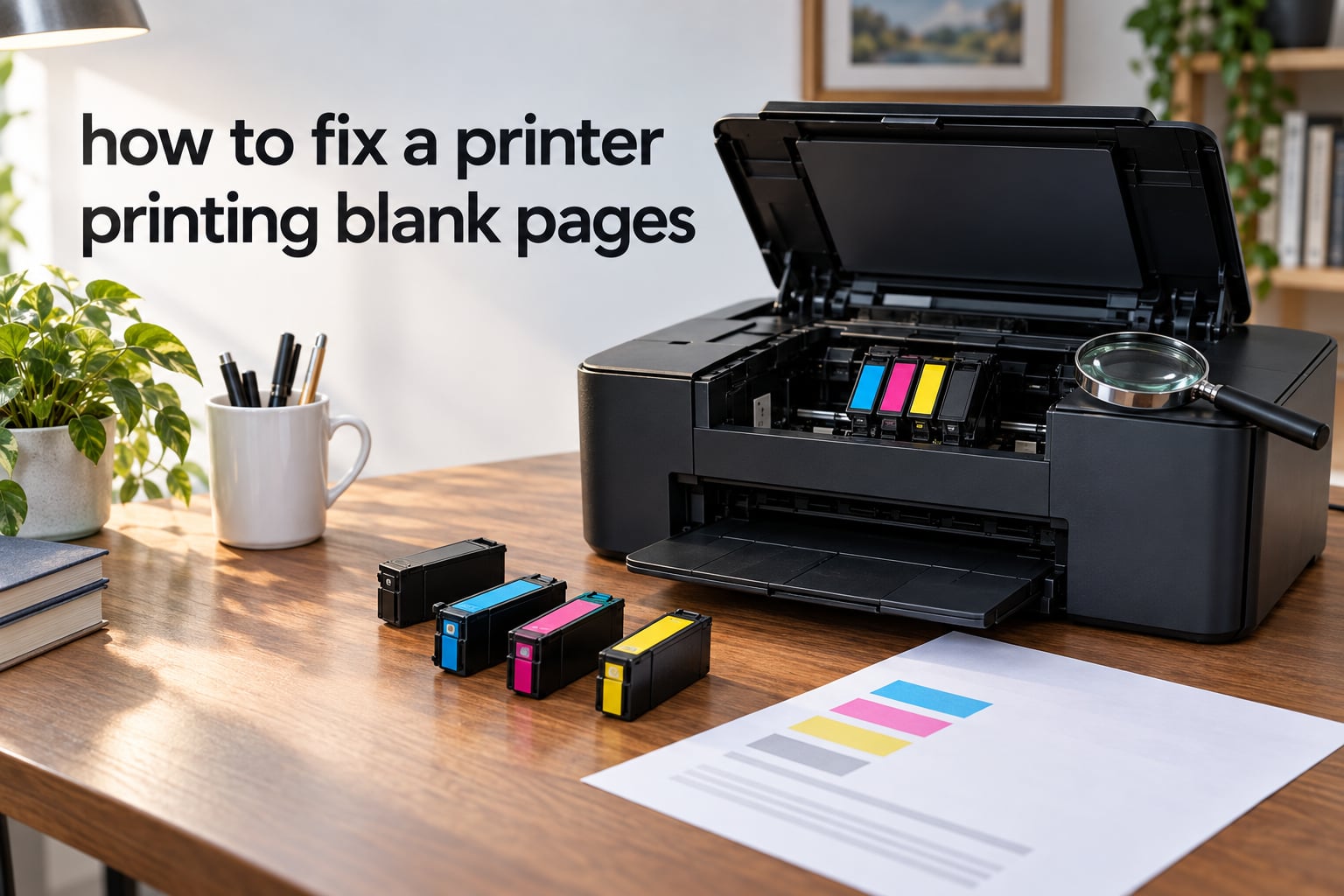
If your printer is printing blank pages, the fix usually takes less than five minutes. In our experience helping people troubleshoot home and office printers, almost every blank-page problem comes from one of four causes: the protective tape was left on a new ink cartridge, the printhead is clogged from sitting idle, the toner cartridge needs to be reseated, or the printer driver is corrupted after a Windows or macOS update.
This guide gives you the exact order of checks our team uses to get a printer printing blank pages working again. We start with a 30-second quick checklist that fixes most cases, then walk through deeper fixes for inkjet printers, laser printers, clogged printheads, driver problems, and brand-specific quirks on HP, Epson, Canon, and Brother models. By the end, you should know whether to keep fixing it or replace the printer.
ContentsTable of Contents›
- Quick Checks: Fix a Printer Printing Blank Pages in 30 Seconds
- Why Your Printer Prints Blank Pages Even With Ink
- Step-by-Step: How to Stop a Printer Printing Blank Pages (Inkjet)
- Step 1: Remove the cartridges
- Step 2: Check for protective tape
- Step 3: Reseat each cartridge firmly
- Step 4: Print a test page from the printer menu
- Step 5: Run a printhead cleaning cycle
- Step 6: Reset the print spooler (Windows)
- Step-by-Step: How to Fix a Laser Printer Printing Blank Pages
- Toner’s most common culprit
- Reset the drum counter after installing a new drum
- Check the transfer roller and fuser
- How to Clean a Clogged Printhead (Built-In Cycle and Soak Method)
- Method 1: Built-in cleaning cycle
- Method 2: Manual soak with distilled water
- Update or Reinstall Your Printer Driver
- Quick driver fix: HP Smart, Canon PRINT, Epson Smart Panel
- Full driver reinstall on Windows
- Full driver reinstall on macOS
- Brother-specific driver quirk
- Brand-Specific Fixes: HP, Epson, Canon, and Brother
- HP printer printing blank pages
- Epson printer printing blank pages
- Canon printer printing blank pages
- Brother printer printing blank pages
- How to Fix Blank Pages When Printing From Your Phone or Tablet
- How to Stop an Extra Blank Page Between Print Jobs
- Inkjet vs Laser: Why Each Printer Prints Blank Pages
- Repair or Replace? How to Decide When the Printer Still Won’t Print
- Frequently Asked Questions
- Why is my printer printing blank pages but there is ink?
- Why does my HP printer printing blank pages even though ink is full?
- How do I clean a clogged printhead?
- Why is my laser printer printing blank pages?
- How do I fix my printer printing blank pages from my phone?
- Why is my new printer printing blank pages?
- Conclusion
Quick Checks: Fix a Printer Printing Blank Pages in 30 Seconds
Before you dig into anything deeper, run through these four steps in order. Most people resolve their printer printing blank pages issue right here.
- Inspect cartridges: Pull them out and check that ink or toner levels are not empty or critically low.
- Remove protective tape: New cartridges ship with an orange or clear sealing strip over the printhead or contacts. Peel it off completely.
- Reseat cartridges: Push each one back in until it clicks firmly into its correct color slot.
- Print a test page: Use the printer’s own menu (not your computer) to print a self-test page and confirm the hardware is working.
- Check the paper path: Make sure there is no jammed paper, foreign object, or sealing card left inside the printer.
If the test page prints normally but your computer still produces blank pages, the problem is almost always the printer driver or print queue. Jump to the driver section below.
Why Your Printer Prints Blank Pages Even With Ink
A printer printing blank pages but there is ink in the cartridges is one of the most common complaints we hear. It feels contradictory, but the ink may be there and still not reach the page for several reasons:
- Dry or clogged printhead. Inkjet nozzles dry out in minutes when the printer sits unused. Dried ink blocks the nozzles, so even a full cartridge prints nothing.
- Protective tape left on. A new ink cartridge has a plastic or foil seal covering the printhead and electrical contacts. If it is still there, no ink can flow.
- Air bubble in the ink system. Right after a cartridge swap, a small air pocket can block the ink flow until it is primed through a cleaning cycle.
- Cartridge not seated. A loose or misaligned cartridge cannot make proper electrical contact with the printhead assembly.
- Wrong cartridge installed. HP, Epson, and Canon printers reject or ignore cartridges that are not genuine or are not the correct regional model.
- Driver or print queue corruption. A Windows update, antivirus scan, or interrupted job can corrupt the driver, sending empty data to the printer.
Knowing the cause matters because the fix is different. A clogged printhead needs cleaning. A bad driver needs reinstalling. Both can look identical from the outside.
Step-by-Step: How to Stop a Printer Printing Blank Pages (Inkjet)
If you have an inkjet printer (HP DeskJet, OfficeJet, ENVY, Epson EcoTank or Expression, Canon PIXMA or MAXIFY, Brother MFC), follow these steps in order. Most users have their printer working again by step four.
Step 1: Remove the cartridges
Open the cartridge access door and wait for the carriage to move to the replacement position. Press down gently on each cartridge to release it from its slot.
Step 2: Check for protective tape
Look at the bottom of each cartridge. If you see a plastic pull-tab, orange strip, or clear film, remove it completely. This shipping seal is the number one cause of a new printer printing blank pages on its very first job.
Step 3: Reseat each cartridge firmly
Slide each cartridge back into its color-coded slot at a slight upward angle, then press up until it clicks into place. Close the access door. The printer should run a short priming cycle.
Step 4: Print a test page from the printer menu
On most inkjet printers, the test page lives under Setup, Tools, or Maintenance on the LCD. On HP printers, it is often called Print Quality Diagnostic Page. If this page prints normally, your hardware is fine and the issue is on the computer side.
Step 5: Run a printhead cleaning cycle
From the same Maintenance menu, run the built-in head cleaning cycle. Print a test page again. If it is still blank or streaked, run the cycle two more times before moving on. Each cycle uses a small amount of ink, so do not run it more than three times in a row.
Step 6: Reset the print spooler (Windows)
Open services.msc, find Print Spooler, right-click and Restart. This clears stuck jobs in the print queue that can flood the printer with empty data.
Step-by-Step: How to Fix a Laser Printer Printing Blank Pages
Laser printers do not have a printhead, which is why the same fixes do not always apply. The toner, drum, and fuser work differently, and so do the failure modes.
Toner’s most common culprit
A laser printer printing blank pages is almost always one of these three things:
- Shipping seal still on the toner cartridge. New toner cartridges have a long orange or clear sealing tape that runs the full length of the cartridge. Pull it straight out before installing.
- Toner settled or unevenly distributed. Gently rock the toner cartridge side to side five or six times to redistribute the powder before installing.
- Drum unit not seated or near end of life. The drum unit carries the electrostatic image to the page. A loose drum, or one that has reached its page count limit, will produce blank pages even with full toner.
Reset the drum counter after installing a new drum
Most Brother, Samsung, and HP laser printers require a manual drum reset after you replace the drum unit. Look in the printer’s Settings or System menu for Reset Drum or Drum Life. Skip the reset and the printer will keep thinking the old drum is empty.
Check the transfer roller and fuser
If the printer feeds paper through, sounds like it is printing, but the page comes out blank or faded, the transfer roller or fuser may have failed. These parts are inside the printer and typically need a technician. If your printer is out of warranty, the repair-vs-replace math usually favors replacement.
How to Clean a Clogged Printhead (Built-In Cycle and Soak Method)
A clogged printhead is the most common cause of an inkjet printer printing blank pages after a few weeks of inactivity. You have two options: the automated cycle that ships with the printer, or the manual soak method that Reddit users and HP community regulars swear by.
Method 1: Built-in cleaning cycle
Open your printer’s maintenance menu and select Clean Printhead or Head Cleaning. The printer will pump ink through the nozzles for 30 to 60 seconds. Print a test page. If the page is still blank, run the cycle two more times, then wait at least one hour before trying again. Running the cycle more than three times in a row wastes ink without clearing tougher clogs.
Method 2: Manual soak with distilled water
When the cleaning cycle does not work, this is the method HP community experts and r/printers regulars use. We have seen it clear clogs that survived a dozen automated cycles.
- Remove the affected cartridge or the printhead assembly if your model has a separate head.
- Place the printhead face-down (nozzle side down) on a folded paper towel soaked in warm distilled water.
- Let it soak for 10 to 15 minutes. The water softens the dried ink.
- Wipe the nozzle plate with a lint-free cloth, then reinstall the cartridge.
- Run one cleaning cycle and print a test page.
Use only distilled water, not tap water and not rubbing alcohol. Tap water leaves mineral deposits that worsen clogs. Alcohol can damage the printhead gasket.
Update or Reinstall Your Printer Driver
When the test page prints fine from the printer but your documents come out blank, the driver or print queue is the most likely cause. A bad printer driver can absolutely cause blank pages, and this is one of the easiest fixes once you know where to look.
Quick driver fix: HP Smart, Canon PRINT, Epson Smart Panel
HP, Canon, and Epson all ship a first-party utility that keeps drivers up to date automatically. If you are on HP, install or open HP Smart, click your printer, then look for Advanced or Printer Home to find the diagnostic and update tools. Canon and Epson follow the same pattern with their own apps.
Full driver reinstall on Windows
Open Settings, then Bluetooth and devices, then Printers and scanners. Click your printer, then Remove device. Open Device Manager, expand Print queues, right-click your printer, and choose Uninstall device. Restart the computer. Reinstall the driver from the manufacturer’s site, not Windows Update. Windows Update drivers are often outdated.
Full driver reinstall on macOS
On Mac, open System Settings, then Printers and Scanners. Right-click your printer in the list and choose Reset printing system. This clears every driver and queue entry and lets you add the printer fresh.
Brother-specific driver quirk
If you have a Brother printer printing blank pages only from the computer, the fix often lives in the printer Properties under Advanced. Open Printing Preferences, click Advanced, and uncheck Keep Printed Documents. If that does not help, change the Print Processor to Winprint and the data type to RAW. This is a known fix Brother documents in their support base.
Brand-Specific Fixes: HP, Epson, Canon, and Brother
Most printer brands have one or two quirks that account for the majority of blank-page complaints. Here are the brand-specific fixes our team reaches for first.
HP printer printing blank pages
HP printers, especially the DeskJet and OfficeJet lines, are very sensitive to non-genuine cartridges. If your HP printer is printing blank pages with new ink, confirm the cartridge is genuine HP and the protective pull-tab is removed. If ink levels show full but pages are blank, run three cleaning cycles from the printer’s Setup menu, then print a Print Quality Diagnostic Page. If the diagnostic page has missing colors, the printhead has likely failed and the printer may need service.
Epson printer printing blank pages
Epson EcoTank and Expression printers have a small ink priming cycle on first install. If your Epson printer is printing blank pages with new ink, run the initial charge cycle from the control panel. For dried clogs, Epson’s Power Ink Flushing utility is more aggressive than the standard cleaning cycle. Use it once, print a test page, and only use it again if the first attempt does not help. Epson printers also use a chip on each cartridge that can block printing if it is dirty. Wipe the gold contacts gently with a dry lint-free cloth.
Canon printer printing blank pages
Canon PIXMA and MAXIFY printers often print a blank page after a cartridge replacement because the ink absorber counter is full or the cartridge chip is not making contact. Run the Bottom Plate Cleaning routine from the Maintenance menu, then reseat the cartridge firmly. If the printer still prints blank pages but has ink, the printhead is likely the culprit. Canon printheads are often part of the cartridge on PIXMA models, so replacing the cartridge fixes the printhead too.
Brother printer printing blank pages
Brother printers are reliable but have one quirk that causes a lot of confusion. They will often print a blank page after a Windows update because the Print Spooler service is holding corrupted data. Restart the Print Spooler service in services.msc first. If that does not work, uninstall and reinstall the Brother software from the Brother support site. As mentioned above, the Advanced Properties tweak for Print Processor and data type is a documented Brother fix that resolves a stubborn share of cases.
How to Fix Blank Pages When Printing From Your Phone or Tablet
Printing from an iPhone, iPad, or Android device adds a layer that the PC troubleshooting steps do not always cover. If your printer printing blank pages only when you print from your phone, walk through these checks.
- Confirm AirPrint or Mopria is enabled on the printer. Many printers ship with AirPrint disabled by default, and the fallback driver often sends blank data.
- Use the brand’s own app instead of AirPrint or the generic Android print menu. HP Smart, Epson Smart Panel, and Canon PRINT handle the driver translation more reliably than the OS-level print menu.
- Print a test page from the printer’s own menu first. If the printer self-test prints fine, the issue is the mobile print path, not the hardware.
- Reboot the router and printer. A stale Wi-Fi connection can cause the mobile device to send a partial or empty job.
- Check the mobile print app’s print queue. Some phones buffer print jobs and retry after a failed connection, sending an empty page in the meantime.
We see this issue most often on older routers that struggle with dual-band Wi-Fi. If your phone is on a different band than the printer, force both onto the same 2.4 GHz network and try again.
How to Stop an Extra Blank Page Between Print Jobs
An extra blank page at the end of a print job, or a random blank page in the middle of a multi-page document, is usually a paper size or form feed setting rather than a hardware fault.
- Match the paper size in the print dialog. A document set to A4 printing on Letter paper will often add a blank page to flush the formatter.
- Disable duplex or two-sided printing. If your printer has a duplexer and the setting is on but the document is single-sided, the duplexer often feeds a blank sheet to reset itself.
- Turn off form feed between jobs. On HP and Brother printers, this lives in Printing Preferences under Advanced or Document Options.
- Print as PDF first. Open the PDF in a reader, then print from the reader rather than from the original app. This sidesteps any application-specific blank page bug.
Forum users on r/printers have been chasing this same issue for years. The paper-size mismatch is the cause more often than anything else.
Inkjet vs Laser: Why Each Printer Prints Blank Pages
Knowing whether your printer is inkjet or laser shapes your entire fix path. The failure modes overlap but the parts that fail are completely different.
| Cause | Inkjet | Laser |
|---|---|---|
| Most common blank-page cause | Clogged printhead from idle time | Toner sealing tape left on |
| First check | Run head cleaning cycle | Remove sealing tape and rock toner |
| If first check fails | Manual distilled-water soak | Check drum unit and reset drum counter |
| Deep hardware failure sign | Print Quality Diagnostic page missing colors | Transfer roller or fuser needs service |
| Prevention | Print at least one page every 1 to 2 weeks | Keep toner sealed until use, avoid humidity |
The rule of thumb we use: inkjets fail from drying out, lasers fail from seals and shipping damage. Fix the cause that matches the printer type first.
Repair or Replace? How to Decide When the Printer Still Won’t Print
If you have worked through the checklist above and the printer is still producing blank pages, it is time to make a cost decision. HP’s own support article uses a 50% rule of thumb: if the estimated repair costs more than half the price of a comparable new printer, replace it.
Here is how we apply that rule in practice:
- Printer under two years old and out of warranty: Repair is often worth it, especially for laser printers where a drum or fuser swap is a known part.
- Printer over five years old with a failed printhead: Replace. Inkjet printheads on older printers rarely justify the repair bill.
- Any printer that has needed two or more cartridge replacements: Compare the lifetime ink cost to the cost of a new inkjet with refillable tanks. EcoTank and Smart Tank models typically pay for themselves within a year.
For laser printers in a home or small office, a monochrome laser often outlasts a color inkjet for everyday printing and is cheaper to run. If your inkjet has had a string of issues, the upgrade math usually makes sense.
Frequently Asked Questions
Why is my printer printing blank pages but there is ink?
Your printer is likely printing blank pages despite having ink because the printhead is clogged, the protective tape was not removed from a new cartridge, or the cartridge is not seated firmly enough. Dried ink in the nozzles is the most common cause after a few weeks of inactivity. Run three printhead cleaning cycles from the printer’s maintenance menu, reseat each cartridge until it clicks, and print a self-test page to confirm the hardware is working.
Why does my HP printer printing blank pages even though ink is full?
HP printers printing blank pages with full ink usually have a clogged printhead, a non-genuine cartridge that the firmware rejects, or a corrupted driver after a Windows update. Open HP Smart, run the printhead cleaning cycle three times, then print a Print Quality Diagnostic Page. If the diagnostic page is still blank, uninstall the printer from Windows Settings, reinstall the driver from the HP support site, and try again.
How do I clean a clogged printhead?
To clean a clogged printhead, start with your printer’s built-in cleaning cycle from the Maintenance or Setup menu. Print a test page after each cycle and run no more than three cycles in a row. If the clog persists, remove the printhead and soak the nozzle plate face-down on a paper towel soaked in warm distilled water for 10 to 15 minutes, then wipe clean and reinstall. Use only distilled water, never tap water or rubbing alcohol.
Why is my laser printer printing blank pages?
A laser printer printing blank pages almost always has the toner shipping seal still on, an unevenly distributed toner cartridge, or a drum unit that is loose or at end of life. Pull the toner cartridge out, remove the full-length sealing tape, rock the cartridge side to side five or six times to redistribute the toner, and reinstall. If the page is still blank, reseat the drum assembly and reset the drum counter from the printer’s settings menu.
How do I fix my printer printing blank pages from my phone?
To fix a printer printing blank pages from your phone, confirm AirPrint on iPhone or the default print service on Android is enabled, then print a test page from the printer’s own menu to isolate the issue. If the self-test page prints normally, use the brand’s official app, HP Smart, Epson Smart Panel, or Canon PRINT, instead of the OS-level print menu. Reboot the router and printer, and make sure both the phone and printer are on the same Wi-Fi band.
Why is my new printer printing blank pages?
A new printer printing blank pages is almost always caused by the protective sealing tape left on the ink or toner cartridge. Open the access door, remove each cartridge, and look for an orange or clear plastic strip covering the printhead or contacts. Pull it straight out, reinstall the cartridge firmly until it clicks, and run the printer’s priming or initial charge cycle from the control panel before printing again.
Conclusion
Learning how to fix a printer printing blank pages comes down to following the same short checklist every time: inspect the cartridges, remove the protective tape, reseat the cartridges, print a self-test page, then move on to printhead cleaning or driver fixes. Inkjet printers fail from dried ink and clogged nozzles; laser printers fail from shipping seals and drum issues. Match the fix to the printer type and you will solve the problem in most cases without a service call.
If you have worked through the steps above and the printer still produces blank pages, the 50% repair-vs-replace rule is your best guide. For older inkjets, an upgrade to an EcoTank or Smart Tank model usually pays for itself in ink savings within a year. For laser printers, a monochrome laser replacement is the most reliable long-term fix.