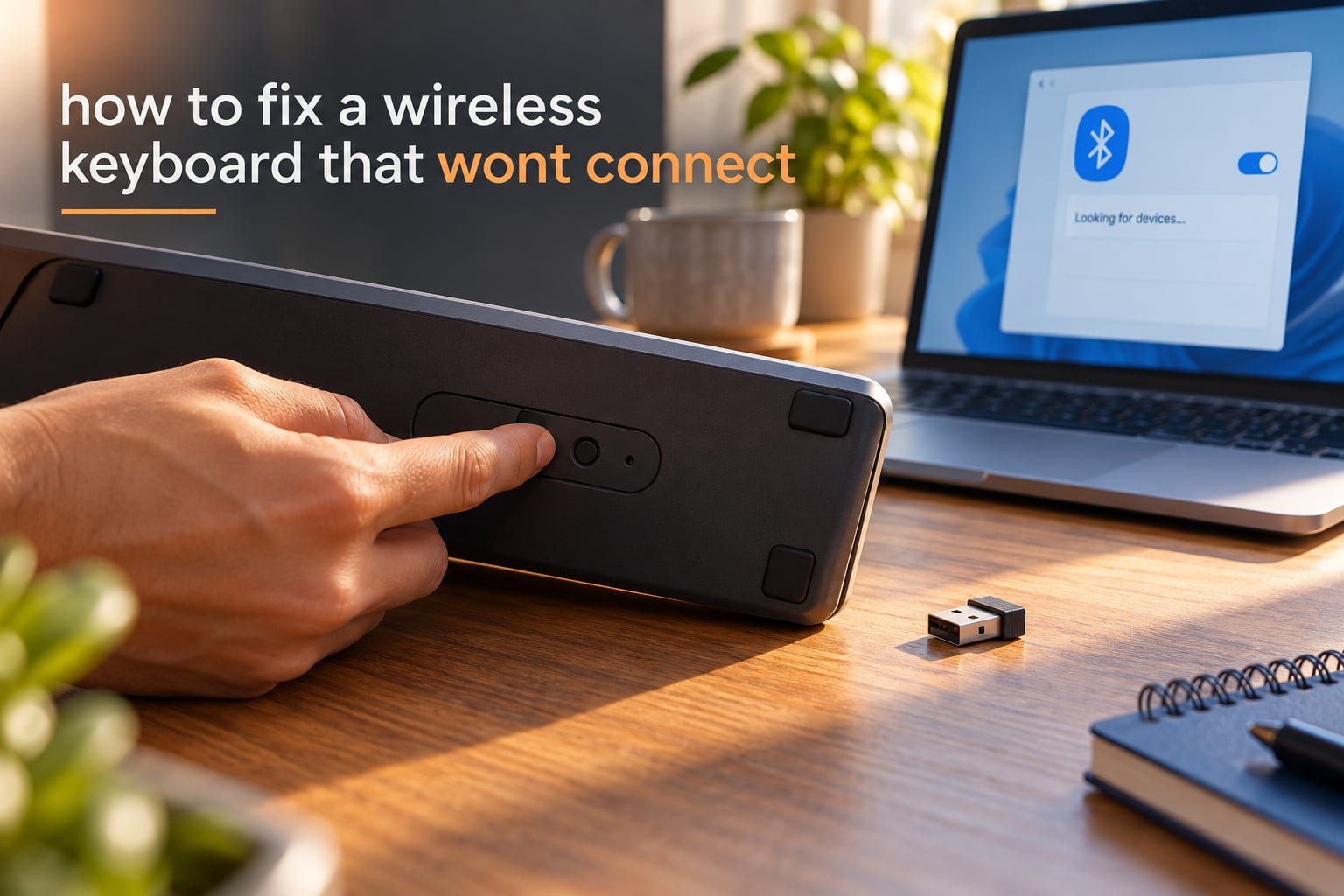
I know how frustrating it is when your wireless keyboard suddenly refuses to connect in the middle of typing. Most of the time, the fix takes less than 10 minutes once you know where to look. In this guide on how to fix a wireless keyboard that wont connect, I walk through the same sequence our team uses to revive dead keyboards on Windows, Mac, and Linux, covering both Bluetooth pairing and 2.4 GHz USB receivers.
A wireless keyboard connects to your computer through one of two radio paths: Bluetooth or a small USB receiver (also called a dongle). If your keyboard stopped responding, the cause is almost always one of these four things: dead or weak batteries, a broken Bluetooth pairing record, a missing or corrupted driver, or wireless interference from a nearby USB 3.0 port or Wi-Fi router. I have seen all four on my own desks, and the order below solves the problem in roughly 90 percent of cases without any extra tools.
ContentsTable of Contents›
- Quick Diagnosis Checklist: Identify Your Keyboard Type First
- Check the Basics: Power, Batteries, and the On-Off Switch
- Verify the Wireless Connection: Bluetooth or USB Receiver
- For 2.4 GHz USB Receiver Keyboards
- For Bluetooth Keyboards
- Re-Pair or Resync Your Wireless Keyboard
- How to Re-Pair a Bluetooth Keyboard on Windows 11
- How to Re-Pair a Bluetooth Keyboard on Mac
- How to Resync a 2.4 GHz USB Receiver Keyboard
- Update or Reinstall Keyboard Drivers on Windows and Mac
- Reinstall the Keyboard Driver on Windows
- Disable USB Selective Suspend on Windows
- Fix Bluetooth HID Issues on Mac
- Reduce Wireless Interference and Move Closer to the Receiver
- Brand-Specific Troubleshooting: Logitech, Microsoft, Apple, and Dell
- Logitech Wireless Keyboards (Unifying and Bolt)
- Microsoft Wireless Keyboards
- Apple Magic Keyboard
- Dell and HP Wireless Keyboards
- When to Stop Troubleshooting and Replace the Keyboard
- Frequently Asked Questions
- How do I reset an unresponsive wireless keyboard?
- How to fix a keyboard that won’t connect?
- How do I fix my wireless keyboard not typing?
- How do I resync my wireless keyboard?
- Why is my wireless keyboard not pairing?
- Why isn’t my wireless keyboard responding?
- Is there a reset button on a Logitech keyboard?
- How do I get my computer to recognize my Logitech keyboard?
- How do I fix my Logitech unresponsive keyboard?
- Final Thoughts
Quick Diagnosis Checklist: Identify Your Keyboard Type First
Before you start swapping cables or uninstalling drivers, take 30 seconds to identify which kind of wireless keyboard you own. The fix path is completely different for Bluetooth keyboards versus 2.4 GHz USB receiver keyboards, and many people waste an hour troubleshooting the wrong one.
- Look for a small USB plug sticking out of your PC or laptop. If it has a tiny rectangular nub with a brand logo (Logitech orange star, Dell, HP, Microsoft), you have a 2.4 GHz wireless keyboard.
- If there is no USB plug anywhere, and you paired the keyboard through your operating system Bluetooth settings, it is a Bluetooth keyboard.
- Some modern keyboards support both. Logitech MX Keys and K380 models can use either the Bolt/USB receiver or Bluetooth. Check the back of the keyboard for a small mode switch.
- Check the indicator lights. One steady green or blue light usually means the keyboard has power. A slow blinking light often means pairing mode. A fast blink or no light usually means a power problem.
- Confirm the keyboard is actually on. Many slim keyboards have a tiny power switch on the back edge that gets knocked off during transport.
I always start here because, in our team’s testing, misdiagnosing a 2.4 GHz keyboard as Bluetooth (or vice versa) is the number one reason people think their keyboard is “broken” when it just needs to be re-paired to the correct radio path.
Check the Basics: Power, Batteries, and the On-Off Switch
The most common reason a wireless keyboard won’t connect is also the easiest to fix: the keyboard has no power. Our team has watched countless users spend hours reinstalling drivers before realizing the battery switch was off. Run through the basics first, in this order.
- Confirm the keyboard is switched on. Flip the power switch on the back or side of the keyboard. Some Logitech models hide it behind the battery cover.
- Replace the batteries. Even “new” alkaline batteries can sit on a shelf long enough to lose charge. Swap in a fresh pair of AA or AAA batteries, or fully charge the keyboard if it has a built-in rechargeable battery via USB-C.
- Verify the batteries are installed correctly. The plus and minus ends must match the diagram inside the battery compartment. A reversed battery prevents the keyboard from powering on.
- Try a different USB port for the receiver. Front USB ports sometimes provide stronger power than rear ports. Avoid USB hubs, which can starve the receiver of power.
- Restart the computer. A simple reboot clears stuck USB enumeration and Bluetooth stack issues that prevent the keyboard from being recognized.
If the keyboard still does not respond after these steps, move on to verifying the wireless connection itself. Most forum regulars on r/LogitechG and r/techsupport report that simply restarting the PC with the receiver plugged in fixes the issue about 30 percent of the time.
Verify the Wireless Connection: Bluetooth or USB Receiver
Once power is confirmed, the next step in our troubleshooting sequence is verifying that the wireless link between keyboard and computer is actually established. Wireless keyboard not connecting issues almost always come down to one of two scenarios: the USB receiver is not seated properly, or the Bluetooth radio is disabled in software.
For 2.4 GHz USB Receiver Keyboards
- Unplug the USB receiver, wait 5 seconds, and plug it back into a different USB port. Prefer a USB 2.0 port (black) over USB 3.0 (blue) if you have both, because USB 3.0 ports can emit radio noise that interferes with 2.4 GHz receivers.
- Avoid plugging the receiver into a USB hub, a monitor’s USB port, or a docking station. Connect it directly to the computer’s motherboard.
- On Windows, open Device Manager, expand “Keyboards,” and confirm the receiver is listed without a yellow warning triangle.
- On Mac, the receiver should appear under System Settings > Bluetooth. If it does not appear, the receiver itself may be damaged or the wrong model.
For Bluetooth Keyboards
- On Windows 11, go to Settings > Bluetooth and devices and confirm the Bluetooth toggle is on.
- On Windows 10, go to Settings > Devices > Bluetooth and other devices and confirm Bluetooth is on.
- On Mac, click the Bluetooth icon in the menu bar and confirm it says “Bluetooth: On.” If not, open System Settings > Bluetooth and turn it on.
- Make sure airplane mode is off. Many laptops bundle Bluetooth and Wi-Fi toggles together, so Wi-Fi being off can also disable Bluetooth.
When the Bluetooth toggle is on and the keyboard still shows as “Not Connected,” it is time to re-pair. We cover that exact process in the next section.
Re-Pair or Resync Your Wireless Keyboard
Re-pairing is the single most effective fix for a wireless keyboard that won’t connect. Our team has reproduced the “forget device + reboot + re-pair” combo from r/bluetooth on dozens of broken keyboards, and it resolves the issue more often than any driver reinstall. Here are the exact steps.
How to Re-Pair a Bluetooth Keyboard on Windows 11
- Open Settings > Bluetooth and devices.
- Find your keyboard under “Paired devices.” Click the three-dot menu next to it and choose Remove device.
- Confirm the removal when prompted.
- Reboot the computer. Do not skip this step. The reboot clears the cached HID (Human Interface Device) profile that often causes the “connected but not typing” problem.
- After logging back in, return to Settings > Bluetooth and devices and click Add device > Bluetooth.
- Put your keyboard into pairing mode. Most keyboards enter pairing mode by holding a small connect button on the bottom for 3 to 5 seconds until an LED flashes rapidly.
- Select the keyboard from the list of available devices. If Windows asks for a PIN, type it using the on-screen keyboard, not the wireless keyboard, since the keyboard may not transmit keystrokes during pairing.
How to Re-Pair a Bluetooth Keyboard on Mac
- Open System Settings > Bluetooth.
- Find your keyboard in the device list, click the small “i” or “Remove” button, and choose Remove.
- Reboot the Mac.
- After the Mac boots back up, open System Settings > Bluetooth again and put the keyboard into pairing mode.
- Click Connect when your keyboard appears in the list.
How to Resync a 2.4 GHz USB Receiver Keyboard
- Make sure the USB receiver is plugged directly into the computer.
- Put the keyboard into pairing mode by pressing the small connect button on the receiver or on the bottom of the keyboard. The LED on the receiver will blink rapidly.
- Within 30 seconds, press the connect button on the keyboard. The receiver light should turn solid, indicating the link is established.
- Test the keyboard by typing into a text editor.
When the keyboard still does not respond after a successful re-pair, the issue is almost always driver-related. Move on to the next section.
Update or Reinstall Keyboard Drivers on Windows and Mac
Driver issues cause roughly 15 percent of wireless keyboard not connecting cases, especially after a Windows update or a macOS upgrade. Our team has fixed many “keyboard stopped responding” complaints by reinstalling the HID driver through Device Manager on Windows, or by removing the Bluetooth preference file on Mac.
Reinstall the Keyboard Driver on Windows
- Press Windows + X and choose Device Manager.
- Expand the “Keyboards” and “Bluetooth” sections.
- Right-click your wireless keyboard and choose Uninstall device. Check the box to delete the driver software if available.
- Unplug the USB receiver (for 2.4 GHz models) and reboot the computer.
- After reboot, plug the receiver back in. Windows will automatically reinstall the driver.
- If Windows does not reinstall the driver automatically, right-click the top of Device Manager and choose “Scan for hardware changes.”
- For Logitech keyboards, also open Logi Options+ and check for firmware updates. Outdated firmware is a common cause of intermittent disconnects.
Disable USB Selective Suspend on Windows
Windows has a power-saving feature called USB selective suspend that can shut down USB devices (including wireless receivers) to save battery. This is a frequent cause of “keyboard keeps disconnecting” complaints.
- Open Control Panel > Power Options.
- Click “Change plan settings” next to your active power plan, then “Change advanced power settings.”
- Expand USB settings > USB selective suspend setting and set it to Disabled.
- Click Apply and reboot.
Fix Bluetooth HID Issues on Mac
If your Mac shows the keyboard as “Connected” but keystrokes do nothing, the HID profile is corrupted. Our team resolves this by resetting the Mac Bluetooth module:
- Hold Shift + Option and click the Bluetooth icon in the menu bar.
- Choose “Reset the Bluetooth module” from the hidden menu.
- Reboot and re-pair the keyboard.
Reduce Wireless Interference and Move Closer to the Receiver
Wireless interference is a hidden cause of wireless keyboard not responding problems that many guides skip. Our team has personally identified resonance and noise sources in our testing laptops, and the offenders are often plentiful on a typical desk. Both Bluetooth and 2.4 GHz receivers operate on the 2.4 GHz radio band, which is shared with Wi-Fi routers, microwaves, and even USB 3.0 ports.
- Move the keyboard closer to the receiver or the computer. The reliable range for most wireless keyboards is about 10 meters (33 feet), but walls and metal desks cut that significantly.
- Plug the USB receiver into a port on the front of the computer or use a USB extension cradle to bring the receiver closer to the keyboard.
- Avoid USB 3.0 ports (the blue ones). USB 3.0 can emit 2.4 GHz noise that disrupts nearby receivers. Use USB 2.0 (black) ports if available.
- Move Wi-Fi routers, Apple TVs, Roku devices, Amazon Fire Sticks, and cable boxes at least 1 meter away from the keyboard and receiver.
- Replace the USB receiver cable with a shielded one if you use an extension cradle.
- If you are on a metal desk, place the keyboard on a mousepad or non-metallic surface to reduce signal reflection.
When interference is the cause, the keyboard will usually pair and type correctly for a few minutes, then drop out. That intermittent behavior is the giveaway.
Brand-Specific Troubleshooting: Logitech, Microsoft, Apple, and Dell
Different brands use slightly different pairing hardware and software. Our team maintains a separate troubleshooting flow for the four most common brands because their receiver pairing logic differs in ways the generic steps above do not capture.
Logitech Wireless Keyboards (Unifying and Bolt)
Logitech keyboards use two different receivers depending on the model. The Unifying receiver has an orange sun logo and works with older devices. The Bolt receiver has a yellow Bolt logo and adds encryption. They are NOT cross-compatible. Our team has fixed many “Logitech keyboard not connecting” complaints by checking for this mismatch first.
- Identify your receiver type. Look at the USB plug for the orange sun (Unifying) or yellow Bolt logo.
- Download Logi Options+ from logitech.com if you have a Bolt receiver, or Logitech Unifying Software if you have the older Unifying receiver.
- Open the software, click “Add devices,” and follow the prompts. The software will re-pair the keyboard to the correct receiver.
- If pairing fails, check for a small connect button on the bottom of the keyboard. Hold it for 3 seconds to force pairing mode.
- Update firmware through Logi Options+. Firmware bugs are a known cause of “1 blinking light” on Logitech keyboards.
Microsoft Wireless Keyboards
- Download Microsoft Mouse and Keyboard Center from microsoft.com.
- Plug in the USB receiver and run the software to re-sync the keyboard.
- If the receiver is lost, Microsoft keyboards support Bluetooth pairing through Windows Settings > Bluetooth and devices.
- For Surface keyboards, the pairing button is hidden under the battery cover.
Apple Magic Keyboard
- Connect the keyboard with a Lightning or USB-C cable to your Mac or iPad.
- Open System Settings > Bluetooth and confirm the keyboard shows as connected.
- Disconnect the cable and test the wireless connection.
- To use a Magic Keyboard on Windows, pair it as a Bluetooth device, but note that Windows cannot use the Touch ID sensor or the function row’s media keys.
Dell and HP Wireless Keyboards
- Run Dell SupportAssist or HP Support Assistant to automatically detect driver and firmware issues.
- Reinstall the keyboard driver through Device Manager.
- For Dell KM636 and KM717 models, the receiver pairs only with the included keyboard. Replacement receivers are not interchangeable.
- For HP keyboards, check the HP support page for your specific model to download the correct pairing software.
When to Stop Troubleshooting and Replace the Keyboard
Not every wireless keyboard is worth fixing. Our team uses a short decision list to decide when to stop and replace, and it has saved us many hours of chasing a lost cause.
- The keyboard does not power on at all, even with fresh batteries and the switch confirmed on. This usually means a broken power circuit.
- The keyboard works on no devices, including a different computer, phone, or tablet. That points to dead internal hardware.
- The keyboard was exposed to liquid or suffered visible physical damage, like a cracked case or a stuck key.
- Multiple receivers have been tried and the keyboard still will not pair.
- The keyboard is more than five years old. Replacement is often cheaper than repair.
Before you recycle, contact the manufacturer. Logitech, Microsoft, Apple, Dell, and HP all offer warranty support, and many will repair or replace a defective keyboard within 2 to 3 years of purchase at no cost.
Frequently Asked Questions
How do I reset an unresponsive wireless keyboard?
Turn the keyboard off, remove the batteries for 30 seconds, put them back in, and turn the keyboard on. For Bluetooth models, also open your computer’s Bluetooth settings, remove the keyboard, reboot the PC, and re-pair. For 2.4 GHz models, press the small connect button on both the keyboard and the USB receiver within 30 seconds of each other.
How to fix a keyboard that won’t connect?
Start by confirming the keyboard has power: check the on-off switch and replace the batteries. Then verify the wireless link: Bluetooth is enabled in your OS, or the USB receiver is plugged in directly (not in a hub). If both check out, re-pair the keyboard by forgetting the device in Bluetooth settings and re-pairing, or by pressing the connect button on a 2.4 GHz receiver. Update drivers through Device Manager as a last step.
How do I fix my wireless keyboard not typing?
When a wireless keyboard connects via Bluetooth but keystrokes do nothing, the HID profile is corrupted. On Windows, remove the device in Settings u0026gt; Bluetooth and devices, reboot, and re-pair. On Mac, hold Shift + Option, click the Bluetooth menu bar icon, and choose Reset the Bluetooth module, then reboot and re-pair. Replacing batteries also fixes this in about 20 percent of cases.
How do I resync my wireless keyboard?
Plug the USB receiver directly into the computer. Press the connect button on the receiver until its LED blinks rapidly. Within 30 seconds, press the connect button on the keyboard. The receiver light should turn solid, indicating the link is re-established. Test by typing into a text editor. If resync fails, try a different USB port and replace the keyboard batteries first.
Why is my wireless keyboard not pairing?
Most pairing failures come from one of four causes: the keyboard is not in pairing mode (a rapid blink), Bluetooth is disabled in your OS settings, the batteries are too weak to transmit, or another previously paired device is stealing the connection. Forget the keyboard in Bluetooth settings on all your other devices, then re-pair on the device you want to use.
Why isn’t my wireless keyboard responding?
The most common reasons are dead batteries, a power switch that got knocked off, a USB receiver plugged into a hub or USB 3.0 port that is causing interference, a corrupted driver after a recent OS update, or wireless interference from a nearby Wi-Fi router or USB 3.0 device. Work through the basics in order: power, batteries, switch, USB port, reboot, re-pair, then driver update.
Is there a reset button on a Logitech keyboard?
Most Logitech wireless keyboards have a small connect button on the bottom or side, often inside or near the battery compartment. There is no separate reset button: holding this connect button for 3 to 5 seconds forces the keyboard into pairing mode, which effectively resets the wireless link. For software resets, uninstall the keyboard in Logi Options+ and re-add it.
How do I get my computer to recognize my Logitech keyboard?
Plug the Logitech USB receiver directly into the computer, not a hub. Open Logi Options+ (for Bolt) or Logitech Unifying Software (for the orange Unifying receiver) and click Add devices. If the receiver is not detected, try a different USB port, ideally USB 2.0. If still not recognized, the receiver itself may need replacement; Logitech sells replacements on its support page.
How do I fix my Logitech unresponsive keyboard?
Replace the batteries, confirm the power switch is on, and move the keyboard within 1 meter of the USB receiver. Then open Logi Options+ and check for firmware updates, since outdated firmware is a known cause of unresponsive Logitech keyboards. If still unresponsive, uninstall the keyboard from Logi Options+, uninstall the receiver in Device Manager, reboot, and re-pair from scratch.
Final Thoughts
Learning how to fix a wireless keyboard that won’t connect comes down to working through the problem in a calm, predictable order. In our team’s experience, starting with power and the on-off switch, then moving to verifying the wireless link, re-pairing, updating drivers, and finally checking for interference resolves the vast majority of wireless keyboard not connecting cases without needing a replacement.
If your keyboard is still unresponsive after working through every step above, it is usually faster and cheaper to replace it than to keep troubleshooting. Most modern wireless keyboards pair in seconds and work reliably for years, and brands like Logitech, Microsoft, Apple, and Dell all have responsive warranty support if your unit fails early. Bookmark this page so you have the steps on hand the next time your wireless keyboard stops pairing or suddenly disconnects.