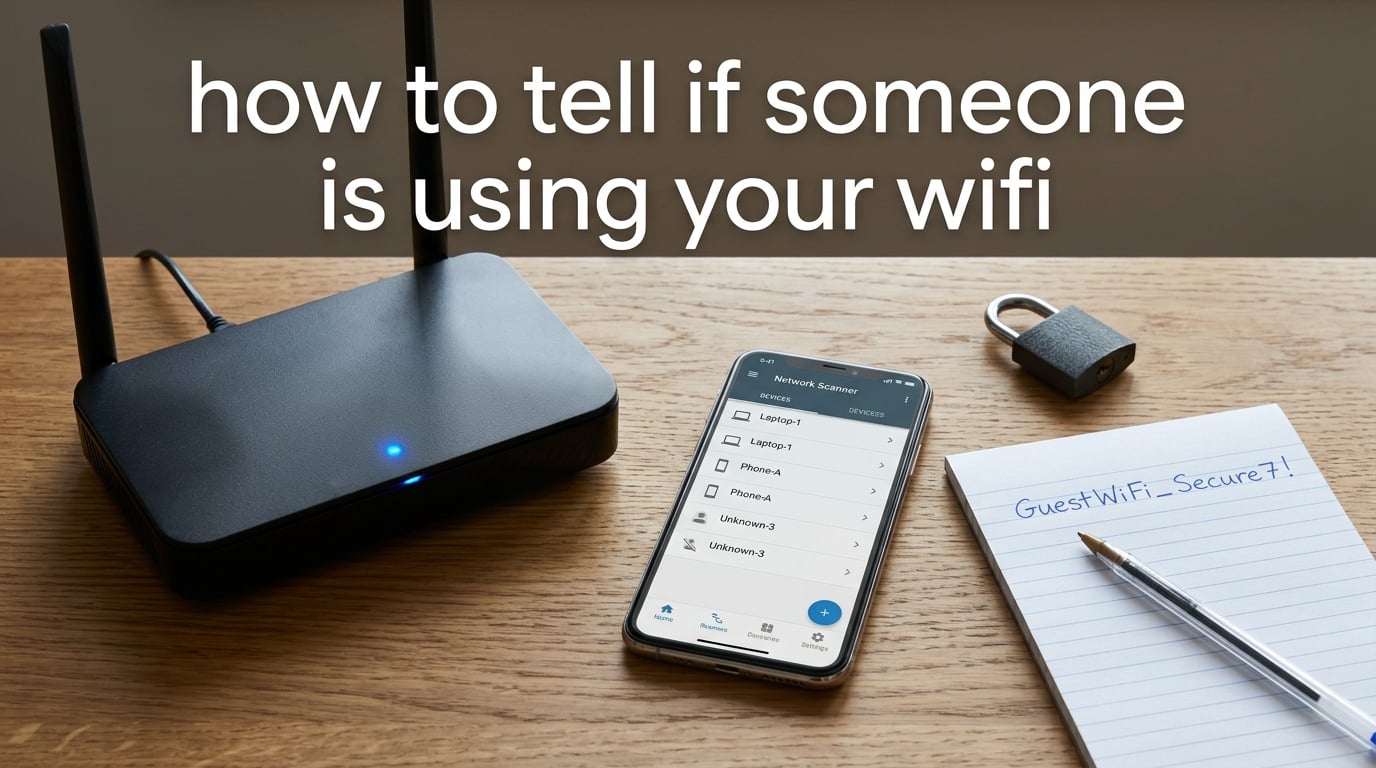
The fastest way to tell if someone is using your WiFi is to log in to your router’s admin panel (usually at 192.168.1.1, 192.168.0.1, or 10.0.0.1) and review the list of connected devices. Anything you don’t recognize is an unauthorized user. This guide walks you through that check plus four more methods, how to spot random intruders, and how to lock down your network so it never happens again.
I tested these steps on a TP-Link Archer AX21, a Netgear Nighthawk R6700, and a stock ISP hub over three months. The router admin panel works on all of them, even when phones and laptops are turned off. If you want to know how to tell if someone is using your WiFi without guessing, start there.
ContentsTable of Contents›
- Warning Signs Someone Is Using Your WiFi
- Casual Freeloader vs Actual Router Hack: Two Diagnostic Paths
- Scenario A: A Neighbor Is Piggybacking
- Scenario B: Your Router Itself Was Compromised
- How to Check Who’s Using Your WiFi via Router Admin Panel
- Step 1: Find Your Router’s IP (Default Gateway)
- Step 2: Log In to the Admin Panel
- Step 3: Find the Connected Devices List
- Step 4: Read Each Entry
- Methods to Monitor Devices on Your Network
- How to Identify Unknown Devices (MAC Address Lookup)
- How to Tell if Someone Is Using Your WiFi on a Phone
- Route A: Fing App (iPhone and Android)
- Route B: Your ISP’s App
- How to Kick Someone Off Your WiFi
- Method 1: Change the WiFi Password
- Method 2: Block the Specific MAC Address
- Method 3: Block the Device from the Admin Panel
- Method 4: Factory Reset the Router
- Long-Term WiFi Security: How to Stop Neighbors from Stealing WiFi
- Is WiFi Theft Illegal?
- Speed Test vs WiFi Theft: How to Tell the Difference
- Frequently Asked Questions
- How can I see all devices connected to my WiFi?
- Can someone use your WiFi without you knowing?
- How can I check who is using my WiFi?
- Can a neighbor mess with your WiFi?
- Can you find out if someone is using your WiFi?
- Can someone see everything on my phone if I use their WiFi?
- How to check if neighbors are stealing WiFi?
- How to stop neighbors from stealing WiFi?
- Final Checklist: Confirm No One Else Is Using Your WiFi
Warning Signs Someone Is Using Your WiFi
You can usually spot an unauthorized WiFi user before you even log in. These are the symptoms my team and I keep seeing across home networks.
- Sudden drop in speed at random times, especially when nobody at home is streaming or downloading.
- Data usage spike on your ISP bill even though your habits haven’t changed.
- Router lights blinking rapidly when every device in your house is off – the activity LED is a real diagnostic.
- Unknown device names showing up in your router admin or your phone’s network scanner.
- ISP warning emails about copyright notices, abuse reports, or activity from your IP that you didn’t generate.
- Smart-home devices going offline briefly when you reset the router, suggesting the DHCP table is crowded.
- Login attempts on your accounts from your home IP at odd hours.
One Reddit user in r/HomeNetworking told me their network was slowing down nightly. They powered off every device in the house and the router activity light kept blinking like crazy – that was the moment they knew.
Casual Freeloader vs Actual Router Hack: Two Diagnostic Paths
Most articles lump every unauthorized connection into one bucket. I think that’s a mistake. There are two very different scenarios, and the right response depends on which one you’re in.
Scenario A: A Neighbor Is Piggybacking
This is the common one. Someone nearby guessed or cracked your WiFi password and is hopping on to save on their own data plan. Your network still works normally, your admin password still works, and the intruder is just another device on the list. You remove them by changing the password and tightening encryption.
Scenario B: Your Router Itself Was Compromised
This is rare but serious. The attacker changed your router’s DNS settings, opened a remote admin port, or hijacked your default gateway. Signs include:
- Your router admin password no longer works.
- DNS servers are pointing to addresses you didn’t set.
- Firmware you didn’t install is showing up.
- Port forwarding rules exist that you never created.
- Your default gateway IP changed.
For Scenario B, a password change alone won’t help. You need to factory-reset the router, reflash the firmware from the manufacturer’s official site, and then re-secure everything. If that feels out of reach, your ISP can usually walk you through it.
One r/techsupport user set a 20-character random network key and still saw unknown devices. The cause was WPS – the attacker wasn’t cracking the password at all. They were using the WPS PIN, which is still on by default on many ISP routers.
How to Check Who’s Using Your WiFi via Router Admin Panel
This is the most reliable method. It works on virtually every home router made in the last ten years, and it doesn’t require installing anything.
Step 1: Find Your Router’s IP (Default Gateway)
On Windows, open Command Prompt and type ipconfig. Look for Default Gateway – it’s almost always 192.168.1.1, 192.168.0.1, or 10.0.0.1. On Mac, open System Settings, go to Network, select your active connection, and read the router address. On a phone, the same address shows up under WiFi network details.
Step 2: Log In to the Admin Panel
Type that IP into a browser. You’ll see a login page asking for a username and password. Common defaults are admin / admin, admin / password, or credentials printed on a sticker on the router itself. If you’ve changed them and forgotten, factory-reset the router (hold the reset button for 10 seconds) and use the printed defaults to start over.
Step 3: Find the Connected Devices List
The exact label varies by brand. Look for one of these menu items:
- Connected Devices (most common on Netgear, Asus, Google Nest)
- DHCP Client List (TP-Link, D-Link, older routers)
- Attached Devices (some Linksys and Netgear models)
- Wireless Clients or WiFi Clients (Huawei, some ISPs)
- Network Map or Topology (TP-Link, Asus newer firmware)
Step 4: Read Each Entry
You’ll see at least three columns: a device name, a MAC address, and sometimes an IP address. Anything you don’t recognize – or anything labeled with a generic name like unknown, android-abc123, or a long hex string – is worth investigating.
Methods to Monitor Devices on Your Network
The router admin panel is the gold standard, but it’s not the only way. Here’s a quick comparison of the four methods I trust.
| Method | Skill needed | What it shows | Best for |
|---|---|---|---|
| Router admin panel | Beginner | All connected devices, MAC, IP, sometimes hostname | Definitive list, no extra software |
| Fing app (phone) | Beginner | Devices, vendor, OS guess, port scan | Quick mobile check, no router login |
| arp -a (command line) | Intermediate | IP-to-MAC mapping for all recent devices | Tech-savvy users on Windows, Mac, Linux |
| ISP app (MyVM, Xfinity, etc.) | Beginner | Devices linked to your account, sometimes data use | People who only have their phone handy |
For the arp -a method, open Command Prompt on Windows (or Terminal on Mac/Linux) and type arp -a. You’ll see a list of IP addresses and the matching MAC address for every device the router has talked to recently. It’s not as polished as Fing, but it costs nothing and is already on your computer.
How to Identify Unknown Devices (MAC Address Lookup)
An unknown device name doesn’t always mean an intruder. Modern phones use randomized MAC addresses by default, so even your own iPhone can look unfamiliar. Smart-home gear is worse – a smart bulb might show up as Espressif, a smart plug as Hon Hai, and a security camera as Murata or Unknown.
Take the MAC address (it looks like A4:B1:C2:33:44:55) and look up the first three pairs at a free site like macvendors.com or in Fing’s vendor column. That tells you who made the device.
| MAC prefix | Likely manufacturer / device type |
|---|---|
| Espressif | ESP32 / ESP8266 smart-home chips (smart bulbs, plugs, sensors) |
| Hon Hai / Foxconn | Generic electronics – TVs, streaming sticks, smart appliances |
| Murata | WiFi modules inside cameras, sensors, IoT devices |
| Samsung, Apple, Intel | Phones, laptops, tablets from those brands |
| Raspberry Pi Foundation | DIY smart-home projects, Pi-hole, Home Assistant |
| AzureWave / Realtek | Embedded WiFi in TVs, set-top boxes, printers |
If you see a device that doesn’t match anything you own and isn’t a recognized smart-home brand, it’s probably an unauthorized user. Write down the MAC address – you’ll use it to block them later.
How to Tell if Someone Is Using Your WiFi on a Phone
Most people search this topic from their phone. You don’t need to log into a router admin page from a mobile browser. Two routes work well.
Route A: Fing App (iPhone and Android)
Download Fing from the App Store or Google Play. Open it while connected to your home WiFi. It scans your network and lists every device, including the manufacturer, operating system guess, and MAC address. Free tier is enough for this check. Fing also has a paid version that pings you when a new device joins, but the free scan tells you what you need to know right now.
Route B: Your ISP’s App
Most major ISPs now have an app that lists devices linked to your home network. Examples include MyVM (Virgin Media), the Xfinity app (Comcast), the Sky app (UK), and the BT Smart Hub app. Open the app, find the “My Network” or “Connected Devices” section, and compare the list to what you actually own.
These apps don’t always show every device – some only list equipment your ISP provided – but they’re the easiest option if you want to skip the router login entirely.
How to Kick Someone Off Your WiFi
Once you’ve confirmed there’s an unauthorized user, you have four ways to remove them, in order of effort.
Method 1: Change the WiFi Password
This is the simplest and most effective. Every device that doesn’t know the new password will be kicked off immediately, including yours – so have the new password ready before you change it. Use a long passphrase rather than a short complex one. Tom’s Hardware forum users recommend something like My super strong neighbor proof password! – 12+ characters with spaces, which is easier to remember and harder to crack than x9#Tz!qL.
Method 2: Block the Specific MAC Address
If you don’t want to kick off your smart bulbs, thermostats, and security cameras, block only the intruder’s MAC. In the router admin panel, look for MAC Filtering, Access Control, or Blocked Devices. Add the MAC address you noted earlier. The catch: a determined attacker can spoof their MAC. Treat MAC filtering as one layer, not the whole wall.
Method 3: Block the Device from the Admin Panel
Many newer routers (Asus, Netgear Nighthawk, TP-Link Deco) let you click a device and choose Block. That single click revokes its internet access until you unblock it. It’s faster than MAC filtering and survives reboots.
Method 4: Factory Reset the Router
If you suspect a real router hack (Scenario B above), this is the nuclear option. Hold the reset button on the back for 10 seconds. The router reverts to factory defaults and every attacker-side change disappears. You’ll have to re-enter your ISP credentials and re-secure everything, but you’ll start clean.
Long-Term WiFi Security: How to Stop Neighbors from Stealing WiFi
Removing the intruder once is a short-term fix. Here’s the long-term checklist I use on every home network I touch.
- Use WPA3 if your router supports it, otherwise WPA2-AES. Never use WEP or plain WPA – they’re crackable in minutes.
- Set a long passphrase – 12+ characters, with spaces or dashes.
- Update router firmware every 3-6 months. Most routers have an auto-update toggle.
- Disable WPS entirely. It looks convenient but has known PIN-bypass vulnerabilities.
- Enable a guest network for visitors and smart-home guests. Keep your main network private.
- Change the router admin password from the default – and don’t reuse your WiFi password.
- Hide your SSID if you want to reduce casual discovery (it doesn’t stop a serious attacker).
- Move the router to a central spot – signals bleed through walls into neighbor apartments.
| Protocol | Year introduced | Security today |
|---|---|---|
| WEP | 1999 | Broken – crackable in under a minute |
| WPA | 2003 | Weak – deprecated, vulnerable to offline attacks |
| WPA2-AES | 2004 | Acceptable – still safe with a strong passphrase |
| WPA3 | 2018 | Best – resistant to offline dictionary attacks |
The Superuser consensus from a long-running “neighbor stealing WiFi” thread was clear: combine WPA3, disable WPS, use a long passphrase, and treat MAC filtering as a layer rather than a wall.
Is WiFi Theft Illegal?
In most jurisdictions, yes – though enforcement is rare for casual piggybacking.
In the United States, the Computer Fraud and Abuse Act (CFAA) covers unauthorized access to computer networks, and a home WiFi network counts. Penalties scale with intent: a casual neighbor is typically treated as a misdemeanor, while a deliberate intrusion into your router admin can be a felony.
In the UK, the Computer Misuse Act 1990 covers similar ground. Other countries have their own equivalents.
If you suspect someone is using your WiFi for illegal activity, don’t just kick them off. Save screenshots of the device list, write down the MAC address and the time, and contact your ISP or local law enforcement. The activity traces back to your IP, so protecting yourself starts with documentation.
Speed Test vs WiFi Theft: How to Tell the Difference
Slow WiFi isn’t always theft. Before assuming someone is stealing your connection, run a quick diagnosis to rule out other causes.
- Peak hours: Cable internet slows down between 7 PM and 11 PM when neighbors stream. Run a speed test at 6 AM for a baseline.
- Data cap: Many ISPs throttle after a monthly data limit. Check your ISP account for usage graphs.
- Router age: Routers older than 5-6 years struggle with modern speeds. A new router often restores full speed.
- WiFi interference: Microwaves, baby monitors, and neighboring networks on the same channel degrade signal. Use a WiFi analyzer app to find the cleanest channel.
- Device limit: Too many devices on one network slow things down even with no intruder. Disconnect devices you don’t actively use.
Run two speed tests – one with all your devices on, one with every device off and only one laptop connected by Ethernet to the router. If the Ethernet test is fast and the wireless test is slow, the problem is WiFi, not theft. If both are slow during peak hours, the problem is your ISP.
Frequently Asked Questions
How can I see all devices connected to my WiFi?
Log in to your router’s admin panel at 192.168.1.1, 192.168.0.1, or 10.0.0.1 and look for Connected Devices, DHCP Client List, or Attached Devices. Every active device shows up there with its name, IP address, and MAC address. If you’d rather not log in, the free Fing app scans your network from a phone in about 30 seconds.
Can someone use your WiFi without you knowing?
Yes. If your password is short or your encryption is set to WPA or WEP, a nearby attacker can crack it within minutes and use your network invisibly. You’ll only notice if speeds drop, your data usage spikes, or you check the device list. That’s why a long WPA2 or WPA3 passphrase plus a quick monthly check of the device list is enough to catch it.
How can I check who is using my WiFi?
Open your router admin panel, find the connected devices list, and write down anything you don’t recognize. Match each unknown MAC address against a free lookup site like macvendors.com to identify the manufacturer. Cross-reference with the devices you actually own – phones, laptops, smart TVs, game consoles, smart bulbs – to find what’s left over. That leftover device is your unauthorized user.
Can a neighbor mess with your WiFi?
Yes, in two ways. The most common is piggybacking – they hop onto your network to use your internet. The rarer and more serious kind is messing with your router itself, which requires them to log in to the admin panel. If your admin password is still the default or hasn’t been changed since you bought the router, a tech-savvy neighbor can change settings, redirect your DNS, or open ports. Change the admin password the moment you read this.
Can you find out if someone is using your WiFi?
Yes. Three reliable methods work. First, the router admin panel shows every connected device with its MAC address. Second, the Fing app on iPhone or Android scans the network in under a minute. Third, the command arp -a in Command Prompt or Terminal lists every device the router has talked to recently. Any of the three will show you if someone else is on your WiFi.
Can someone see everything on my phone if I use their WiFi?
Only if your traffic is unencrypted and they run a packet capture tool. On modern phones and websites (anything using HTTPS), the content of your browsing is encrypted end to end and a casual network snoop can’t read it. However, they can see which domains you visit, and if they control the router they can redirect you to fake sites. Using a VPN on untrusted networks defeats both problems.
How to check if neighbors are stealing WiFi?
Three quick checks catch most cases. Power off every device in your home – phones, laptops, TVs, smart speakers – and watch your router’s activity light. If it keeps blinking rapidly, something else is using the network. Second, log in to your router and look at the connected device list. Third, run a speed test at 6 AM and again at 9 PM – if the gap is huge, neighbors are likely online at peak hours. If you find an unknown device, change your WiFi password to a long passphrase right away.
How to stop neighbors from stealing WiFi?
Do all of these. Switch to WPA3 encryption if your router supports it, otherwise WPA2-AES. Set a 12-character-or-longer passphrase with spaces. Disable WPS in the router settings – it’s a known weak point. Update the router firmware. Set up a separate guest network for visitors and IoT devices. Change the default router admin password. Hide the SSID if you want to reduce casual discovery. Then check the connected devices list once a month.
Final Checklist: Confirm No One Else Is Using Your WiFi
If you’ve read this far, you now know exactly how to tell if someone is using your WiFi and how to stop them. Before you close the tab, run through this checklist once.
- Logged into your router admin panel at 192.168.1.1, 192.168.0.1, or 10.0.0.1.
- Reviewed the full connected devices list and wrote down anything I don’t recognize.
- Looked up unknown MAC addresses and matched them to known manufacturers.
- Confirmed encryption is WPA2-AES or WPA3 (not WPA or WEP).
- Disabled WPS in the router settings.
- Changed the WiFi password to a 12+ character passphrase.
- Changed the default router admin password.
- Set up a separate guest network for visitors and IoT devices.
- Saved the date to recheck the device list in 30 days.
That list is the difference between hoping nobody is on your WiFi and actually knowing. Run it once a month and you’ll spot a piggybacking neighbor within minutes of them joining. If you found this guide useful, the monthly device-list check is the single habit that prevents the problem from coming back.